
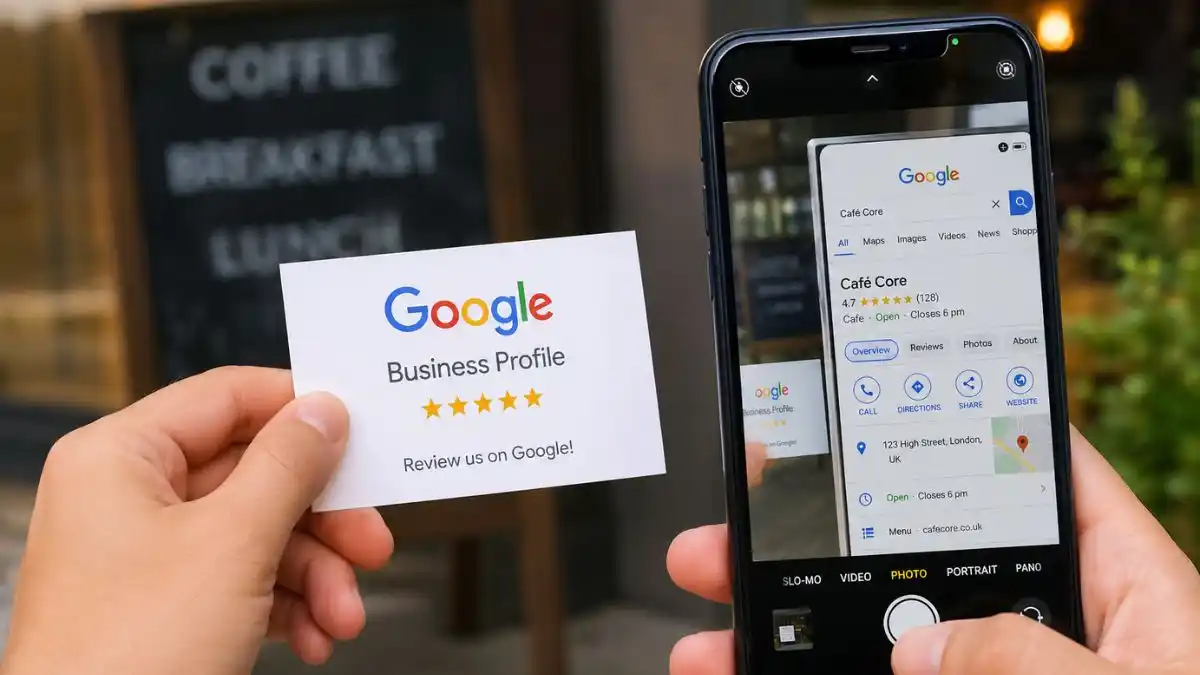
If your Google Business Profile is not showing on Google Search or Google Maps, the cause is usually one of five things: the profile is not fully verified, Google is still processing a new or edited profile, the listing has a policy problem, the business is not relevant enough for the search being used, or the profile is showing only in a smaller local area than you expect.
The important point is that “not showing” and “not ranking well” are different problems. A profile that does not appear even when you search the exact business name needs a different investigation from a profile that appears for its name but not for searches such as “plumber near me” or “SEO company Croydon”.
Use the checks below in order. They are written for business owners, not technical SEO specialists.
Google Business Profile not showing: first checks
| What you see | Most likely issue | First action |
|---|---|---|
| Profile does not appear for exact business name | Verification, suspension, duplicate or processing issue | Open the profile while signed into the owner account |
| Profile appears for business name but not service searches | Ranking/relevance issue | Check category, services and local relevance |
| New profile is verified but hard to find | New-profile delay | Give Google time and confirm all details are complete |
| Profile vanished after an edit | Re-verification or policy review | Check for alerts, pending edits or verification requests |
| Profile appears in one area but not another | Distance and local ranking | Test from several locations instead of one device |
1. Search for the exact business name first
Start with the simplest test.
Search Google for:
- the exact business name;
- the business name plus town or area;
- the business phone number;
- the business address, if the address is meant to be public.
If the profile appears for the exact name, it exists and is visible. Your problem is probably ranking for wider local searches, not basic visibility.
If it does not appear even for the exact name, continue with the checks below.
2. Make sure you are signed into the correct Google account
Many profile problems are account problems rather than ranking problems.
Business owners sometimes have several Google accounts:
- personal Gmail;
- work Google account;
- old agency account;
- previous employee account.
Search for “my business” while signed into the account that owns or manages the profile.
If Google shows management controls, you have access to the listing.
If it does not, confirm who owns the profile before creating another one. Creating a duplicate can make the situation worse.
3. Check whether the profile is verified
Google only allows verified businesses to fully control their Business Profile and show business information reliably across Search and Maps.
If you see a Get verified button, finish the verification process shown in the profile.
Google decides which verification methods are available. Depending on the business, you might be offered:
- video recording;
- phone or text;
- email;
- live video call;
- postcard;
- instant verification in some cases.
You cannot simply choose any method you prefer if Google has not offered it.
If video verification is failing, the verification evidence Google expects depends on location, business activity and proof that you manage the business.
4. Check for a suspension or restriction
A suspended or disabled Business Profile may stop showing publicly.
Look for:
- emails from Google Business Profile;
- a suspended or disabled notice;
- appeal options;
- requests to correct business information.
If the profile is suspended, do not immediately create another profile.
Review the underlying cause first. Common problems include:
- keyword-stuffed business name;
- address that does not meet Google’s rules;
- virtual office;
- duplicate listing;
- ineligible business model;
- major changes that trigger re-verification.
Common Google Business Profile suspension causes include name, address, eligibility and duplicate-listing problems.
5. Give a new profile time to appear properly
A newly verified profile may not immediately appear strongly for local searches.
Google’s own help guidance says new businesses can take time to appear in search results, and changes to business information can also take time to update.
That means a profile being verified does not automatically mean it will rank for competitive service searches the same day.
During that period:
- complete the business information;
- use the correct primary category;
- add genuine services;
- check hours;
- add real photos;
- make sure the website matches the business information.
Do not make several unnecessary major edits every day while Google is still processing the profile.
6. Check the business name for extra keywords
Your Business Profile name should match the real-world business name.
For example, if the business is officially:
ABC Plumbing Ltd
do not change it to:
ABC Plumbing Ltd – Emergency Plumber Croydon 24/7 Boiler Repair
unless that wording is genuinely part of the business’s real name.
Adding service and location keywords to the business name can create compliance problems.
Put services and local information in the proper fields instead.
7. Check the primary category
A profile can exist and still fail to appear for the searches you expect if the primary category does not describe the main business accurately.
For example:
| Business | Weak choice | More specific choice when accurate |
|---|---|---|
| Emergency plumber | Contractor | Plumber |
| Accountancy practice | Business service | Accountant |
| Web design agency | Marketing consultant | Web designer |
| Air conditioning installer | Engineer | Air conditioning contractor |
Use the most accurate category that describes what the business is, not every individual service it offers.
The primary and additional Business Profile categories should describe the real business rather than search keywords.
8. Check whether the business is eligible to show an address
This is particularly important for trades and home-based service businesses.
If customers do not visit your business address, Google says service-area businesses should normally hide the address and show the areas they serve instead.
Do not display a residential address simply because you think showing an address will improve rankings.
Also avoid:
- virtual offices;
- mailbox addresses;
- fake local offices;
- addresses where the business is not genuinely operating.
A service-area Business Profile without a shopfront should hide an address customers do not visit and use genuine service areas instead.
9. Check whether the profile has become a duplicate
Search Google Maps for:
- the business name;
- old business name;
- old address;
- phone number.
If two profiles represent the same business, customers and Google may see conflicting information.
Do not create another listing simply because the first profile is hard to find.
Resolve ownership or duplicate issues instead.
10. Check whether important edits are still pending
Google reviews edits before they go live.
A major change to:
- name;
- address;
- category;
- phone;
- website;
may be delayed or may trigger more checks.
If an edit is still pending, give Google time rather than repeatedly making the same change.
If it is marked not approved, check the evidence supporting the edit. Rejected or pending Business Profile edits need evidence that matches the business.
11. Make sure the website supports the profile
Your website gives Google another source of information about the business.
Check that the site clearly shows:
- business name;
- main services;
- service area or customer-facing address;
- phone number;
- contact details;
- relevant service pages.
If the Business Profile says “air conditioning contractor in Croydon” but the website gives Google almost no information about air conditioning or Croydon, the signals are weak.
This is one reason your local SEO foundations matter beyond the profile itself.
12. Search from more than one location
Local search is heavily affected by distance.
A business may appear strongly when the searcher is nearby and disappear when the searcher is several miles away.
Do not judge the whole profile from one search performed at your office.
Check several areas where real customers are likely to search.
13. Check whether you are expecting the profile to rank for the wrong search
Verification does not guarantee visibility for every service keyword.
If your profile is categorised as a web designer, it does not automatically mean it will rank for:
- SEO agency;
- IT support;
- social media management;
- graphic design;
unless Google has enough accurate information to understand those services and the profile is competitive for those searches.
14. Complete the Services section
For eligible service businesses, Google allows you to list services directly on the profile.
Add genuine services customers can actually buy.
Do not create dozens of keyword variations for one service.
Add Google Business Profile services from the real jobs customers can actually buy.
15. Add real photos
Photos help customers understand that the business is real and active.
Useful examples include:
- shopfront or premises;
- team;
- vehicles;
- completed work;
- products;
- equipment;
- before-and-after work where appropriate.
Do not use stock photos to pretend you have a location or team you do not have.
16. Understand the difference between visibility and ranking
This is the key diagnostic.
| Problem | Meaning |
|---|---|
| Not visible for exact business name | Profile/access/verification/policy issue |
| Visible for name, not visible for service searches | Ranking/relevance/competition issue |
| Visible nearby, disappears farther away | Distance/local competition issue |
| Visible on Maps but not prominent | Ranking strength issue |
If your profile exists but does not rank well for commercial local searches, use the Maps ranking diagnostic next.
Google Business Profile not showing checklist
- Search the exact business name.
- Confirm the correct owner account.
- Check verification status.
- Check for suspension or restrictions.
- Check for duplicates.
- Review business name.
- Review primary category.
- Check address/service-area setup.
- Check pending edits.
- Complete services, hours and contact details.
- Make sure the website supports the same business information.
- Test visibility from several locations.
When to get help
If the profile is verified, compliant and still cannot be found for the exact business name, the next step is a proper profile diagnosis rather than another round of random edits.
Core Web UK provides SEO and local search support for UK businesses, including Business Profile and website issues that affect local visibility.
Google Business Profile not showing FAQs
Why is my verified Google Business Profile not showing?
Check whether it is visible for the exact business name. If not, review verification, policy status, duplicates and pending edits. If it appears for the name but not service searches, the issue is more likely local ranking.
How long does a new Google Business Profile take to show?
Verification and search visibility are not always immediate. Google says new businesses and profile edits can take time to appear fully in search results.
Can a Google Business Profile disappear after an edit?
Yes. Major edits can trigger review or re-verification. Check the profile for pending changes, verification requests or policy alerts.
Why does my business show in one town but not another?
Distance is one of Google’s core local ranking factors. A profile can be much more visible near its real location than several miles away.
Should I create another profile if mine is not showing?
No. First diagnose the existing profile. Creating a duplicate can create more problems.
