
How often should you update WordPress? For most UK business websites, the sensible answer is to review available updates at least weekly, apply security fixes promptly, and test higher-risk changes before they reach the live site. The right schedule is not simply “every Friday” or “once a month”. It depends on what the update changes and how much the website matters to the business.
A five-page brochure site and a WooCommerce shop should not use the same update process. The brochure site may tolerate a straightforward maintenance window. An online shop, booking platform or membership site needs more control because a compatibility problem can affect payments, forms, customer accounts or orders.
This guide gives UK small-business owners a practical WordPress update cadence without turning every dashboard notification into an emergency.

How often should you update WordPress? The practical answer
A useful rule is to separate checking for updates from installing every update immediately.
Move promptly after confirming a recoverable backup and any needed compatibility checks.
Review at least weekly. Apply routine changes in a controlled maintenance window.
Read release notes and test first when the website is business-critical.
Use staging and test checkout, payments, shipping and order emails after important updates.
WordPress itself recommends keeping the software current and making a backup before updating. Its official WordPress update guidance also explains the difference between automatic background updates and manual updates.
Why “update everything once a month” is too simple
Many maintenance plans are sold around a calendar: weekly, fortnightly or monthly updates. A schedule is useful because it stops maintenance being forgotten, but the calendar should not decide the urgency.
If a plugin releases a security patch the day after your monthly maintenance window, waiting another four weeks simply because “updates are done monthly” makes little sense. On the other hand, installing a major page-builder or ecommerce release on a live site five minutes after release can create unnecessary risk if you have not checked compatibility.
The better question is: what kind of update is this, and what could break if it goes wrong?
That risk-based approach is also why website maintenance is more than pressing the Update button. Our website maintenance and support service includes the wider work around updates: backups, checks, monitoring and support if something fails.
Stay secure
Stay fast
Stay reliable
How often should WordPress core be updated?
WordPress core should be kept current, with security and maintenance releases treated as a priority. Major releases deserve a little more planning on websites that use page builders, custom code or important integrations.
WordPress supports automatic background updates, but exactly what happens on a particular site depends on its version, configuration, hosting environment and update settings. That is one reason business owners should not assume “WordPress handles everything automatically”.
Before a significant core update, check that:
- a current backup exists and can actually be restored;
- your active theme and important plugins support the new version;
- custom code or integrations do not depend on deprecated behaviour;
- you have time to test the site afterwards rather than updating just before a campaign, launch or busy trading period.
If the website is simple and well maintained, this can be a quick process. If it runs bookings, ecommerce, memberships or bespoke functionality, staging is the safer place to prove the update first.
How often should WordPress plugins be updated?
Plugins usually create the busiest update queue because every plugin follows its own release cycle. Some receive frequent bug fixes and security patches; others may go months between stable releases.
For most small-business sites, a weekly plugin review is a sensible baseline. That does not mean every available plugin should be updated together without checking what changed.
Prioritise plugins that:
- contain a disclosed security fix;
- control logins, forms, payments or customer data;
- affect a page builder or the site-wide layout;
- integrate with another service such as a CRM, booking system or payment gateway;
- fix a bug that is already affecting the website.
For a low-risk utility plugin with a routine maintenance release, waiting until the next controlled update window may be reasonable. For a critical security patch, the maintenance calendar should not become an excuse for delay.
How often should WordPress themes be updated?
The active theme should be checked alongside plugins. A theme update may contain security, compatibility, accessibility, CSS or JavaScript changes even when the website looks unchanged from the outside.
If your site uses a child theme, the parent theme still needs maintaining. A child theme protects customisations from being overwritten, but it does not make the parent theme maintenance-free.
Extra care is needed when a website has been customised directly inside theme files. WordPress warns that core/theme upgrades can overwrite modified files, which is another reason custom work should be structured properly rather than patched directly into software that will later be replaced by an update.
Should you enable automatic WordPress updates?
Automatic updates can be useful, but “turn them all on” is not a universal best practice.
WordPress allows administrators to enable plugin and theme auto-updates individually. According to the official plugin and theme auto-update documentation, WordPress checks for enabled automatic updates on a regular background schedule and can notify site owners after update attempts.
Auto-updates make the most sense when the component is well trusted, the update risk is low, backups are reliable and someone will notice quickly if something changes. They need more consideration when a plugin controls revenue-critical functionality or has a history of significant compatibility changes.
A sensible business setup may therefore mix both approaches: automate low-risk updates where appropriate, while keeping major or business-critical changes under manual control.
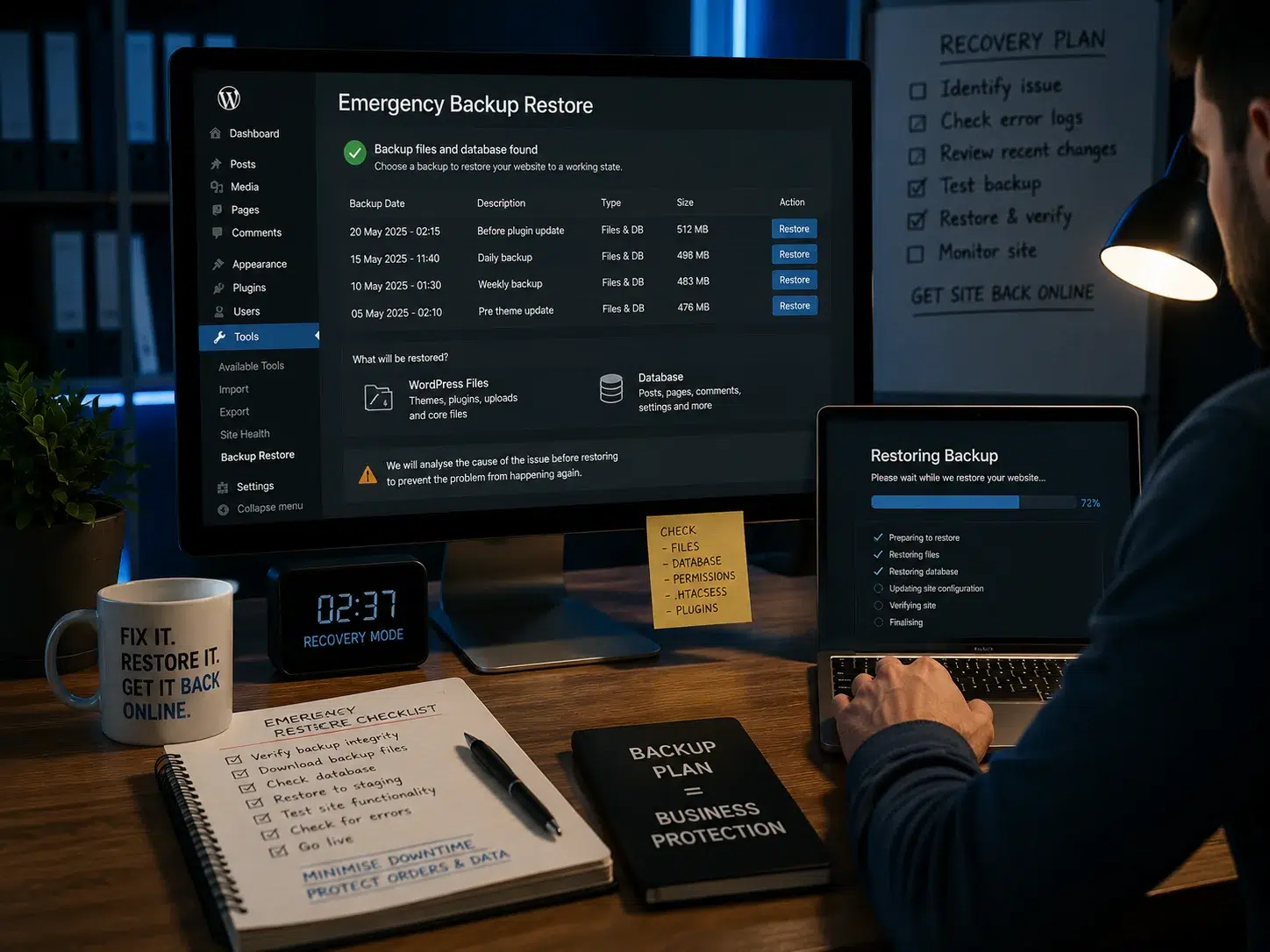
The safe WordPress update workflow
Whether you update weekly or monthly, the process matters more than the day of the week.
- Read what is changing. Check the release notes, especially for major plugins and themes. Look for security fixes, breaking changes, minimum PHP requirements and compatibility notes.
- Take a current backup. A backup should include the database and files needed to restore the site. For frequently changing sites, make sure the backup is recent enough that a restore would not lose important business data.
- Use staging for higher-risk changes. Test major core releases, WooCommerce, page builders and critical integrations away from the live site where practical.
- Update in a controlled order. Avoid making unrelated server, PHP, theme and plugin changes simultaneously unless that exact change set has already been tested.
- Clear caches where necessary. Old cached files can make a successful update appear broken or hide a new problem.
- Test what customers actually use. Load important pages, submit the enquiry form, test mobile navigation and check the functions that make the website commercially useful.
- Monitor afterwards. Some faults are not obvious immediately. Check uptime, error logs, forms and business-critical journeys after the update.
This is the difference between “the dashboard says everything is updated” and knowing the website still works.
WooCommerce needs a stricter update process
A WooCommerce store deserves more caution because the database changes throughout the day and the website sits directly in the sales process.
WooCommerce’s current official update documentation says a monthly cadence works well for many stores, with security fixes and important bug fixes handled sooner. It recommends a current backup, testing on staging where possible, and checking key workflows after the update.
Those checks should include product pages, basket, checkout, payments, shipping, taxes, order emails and any extension-specific feature the store depends on.
For an ecommerce site, the useful distinction is therefore:
- review updates frequently so important security or compatibility releases are not missed;
- deploy routine changes in a planned window after appropriate testing;
- test the transaction journey, not just the homepage.
If a store receives orders throughout the day, backup strategy also matters. Restoring a database from yesterday may bring the website back online but could lose newer orders or customer activity.
Do not judge an update by the homepage. Test the full buying journey: product → basket → checkout → payment → order email.
What should you test after a WordPress update?
Testing should reflect what the website is supposed to achieve. For a local service business, that normally means more than checking whether the homepage loads.
At minimum, review:
- the homepage and main service pages;
- mobile navigation and key buttons;
- contact forms and confirmation emails;
- click-to-call and WhatsApp links where used;
- page-builder layouts on desktop and mobile;
- login or membership areas if applicable;
- search, filters or booking functions;
- checkout and payment flows for ecommerce sites;
- obvious console, PHP or server errors;
- speed or layout regressions on important landing pages.
If an update causes a critical error, blank screen, broken checkout or missing form, do not keep stacking more changes on top hoping the problem disappears. Restore or roll back safely, identify the conflicting component and investigate it in a controlled environment. Our emergency website fixes service is designed for situations where a live business website has already broken and needs urgent technical intervention.
How often should different types of business website be updated?
Simple brochure website
Review updates weekly. Routine changes can usually be grouped into a controlled maintenance window, while security fixes should be prioritised. Check forms and key pages afterwards.
Lead-generation website
Use the same weekly review, but treat forms, tracking, landing pages and call-to-action functionality as business-critical. An update that leaves the site “online” but stops enquiries is still a serious failure.
WooCommerce store
Review frequently, follow a planned deployment process, use staging for material changes and test the full sales journey. Security releases should not wait for convenience.
Booking or membership website
Give extra attention to customer accounts, calendars, payments, notifications and external integrations. Test those workflows before considering the maintenance complete.
High-traffic or custom WordPress site
Use formal change control, staging, reliable backups, monitoring and a rollback plan. The higher the commercial impact of downtime, the less appropriate one-click bulk updating becomes.
What happens if you leave WordPress updates too long?
Outdated software does not always break immediately. That is what makes neglect easy to ignore.
The problems tend to accumulate: compatibility gaps widen, old plugins stop receiving support, PHP requirements move on, security fixes remain unapplied and the eventual update becomes a much larger jump. A website can look perfectly normal to visitors while the maintenance risk increases behind the scenes.
If you are unsure whether the cost of managed maintenance is justified, our guide to website maintenance costs in the UK explains the difference between low-cost automated care and hands-on support for business-critical sites.
Security gaps, compatibility problems and a much bigger update jump later.
Smaller controlled changes, easier testing and a clearer rollback path.
Do WordPress updates help SEO?
Installing updates is not an SEO ranking tactic by itself. Google does not reward a site simply because every plugin is on the newest version.
Updates can, however, protect the conditions your website depends on: working pages, stable layouts, functioning forms, good performance, secure connections and compatibility with current software. A broken navigation menu, failed JavaScript bundle or slow page after an update can hurt users regardless of how “up to date” the dashboard looks.
That is why post-update testing matters. The goal is not to collect green update ticks; it is to keep the website dependable.
A sensible WordPress update policy for a UK small business
If you want one practical policy to adopt, use this:
- Check WordPress core, plugin and theme updates at least weekly.
- Prioritise genuine security fixes rather than waiting for an arbitrary monthly date.
- Keep a tested, recoverable backup before higher-risk changes.
- Review release notes for major components.
- Test important updates on staging when the website is commercially critical.
- Do not update several unrelated systems at once unless you have tested the combination.
- Test forms, mobile navigation, bookings, checkout and other key journeys afterwards.
- Remove abandoned software instead of carrying unnecessary maintenance risk.
- Make sure someone is responsible for noticing and fixing problems after an update.
The bottom line
There is no safe universal answer such as “update WordPress every 30 days”. For most UK business websites, weekly review plus risk-based deployment is a better model: security fixes move quickly, routine updates are handled in a controlled window, and major changes are tested before they reach important live functionality.
The more your business depends on the website, the more valuable that process becomes. If you would rather have updates, backups, monitoring and post-update checks handled for you, Core Web UK provides managed WordPress website maintenance for existing WordPress, Elementor and WooCommerce websites across the UK.
Which WordPress updates should be handled first?
Security fixes should normally be reviewed quickly because they may close a known risk. Larger feature updates can need more testing, especially on sites that use WooCommerce, booking tools or page builders.
A good update process is simple: back up, check compatibility, update, then test the parts of the site customers use.
That matters even for maintenance releases and security backports, including security fixes issued to older WordPress branches. Plugin disclosures can be just as urgent; the Cache Enabler file-deletion vulnerability is a good example of why update decisions should be tied to current security information.
- Check forms and contact buttons.
- Test checkout or bookings.
- Review the site on mobile.
- Keep a recent backup ready.
