
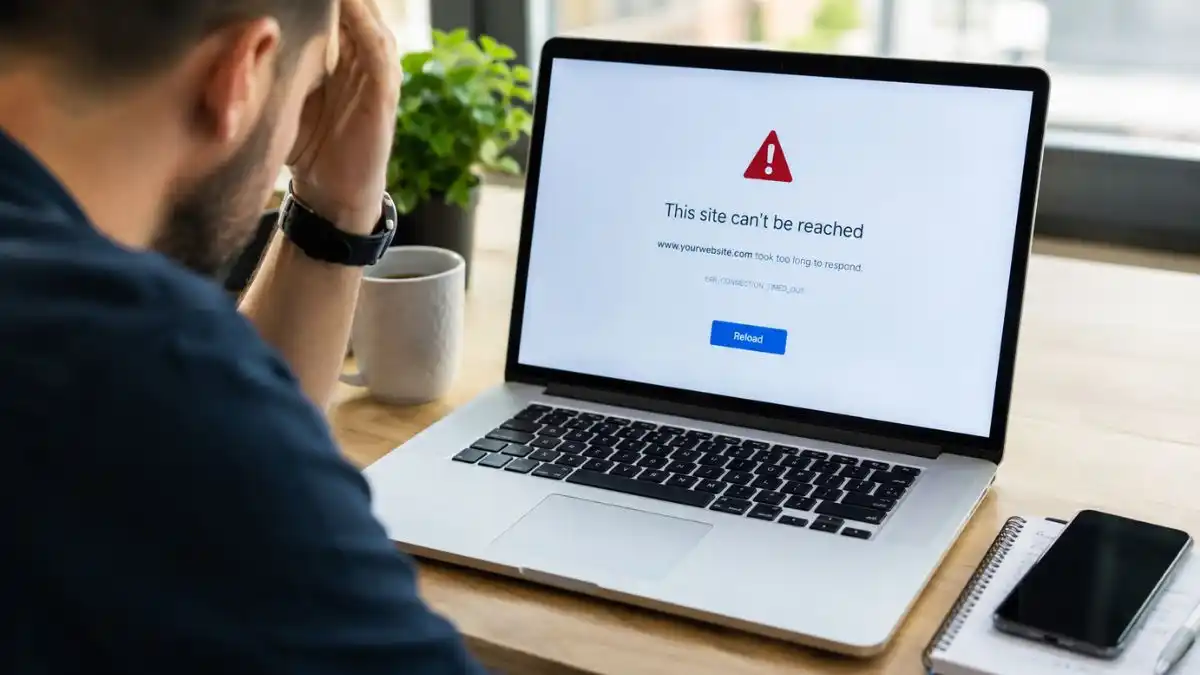
Your site is often the first place people interact with your firm. Whether you bring in leads, sell products online or simply provide information, an unexpected site problem can quickly affect sales, user trust. Day-to-day operations.
The good news is that not every site issue is caused by a major site failure. Some problems are local to your device. Others can be resolved by checking your hosting, domain, SSL certificate or recent website changes. Knowing where to look first can save valuable time. Help you avoid making the situation worse.
This guide helps you find common site problems and understand what may be causing them. It also explains when you can fix the issue yourself and when you may need emergency site support.
At a Glance
- Most site problems can be traced to hosting, domains, DNS, SSL certificates, software updates or recent changes.
- Always confirm whether the issue affects everyone or only your device before making changes.
- Avoid changing multiple settings at once, as this can make diagnosis more difficult.
- site downtime can interrupt leads, online sales and user communication.
- Many problems can be resolved without rebuilding the site.
- Serious server, database or security issues should be handled by experienced developers.
- Regular checks, backups and uptime tracking can help prevent future downtime.
Website Not Working? Start Here
Before changing website settings, first check that the problem is real.
Many site issues come from Wi-Fi, browser cache or a short network fault. The website itself may be fine.
Complete this quick checklist
✔ Try opening the site on another device.
✔ Turn off Wi-Fi and load the site using your mobile network.
✔ Open the site in a different browser.
✔ Ask a colleague or friend to check whether the site loads for them.
✔ Use an online website status checker to confirm whether the site is accessible from outside your network.
If the site works everywhere except your own device, the problem is likely local rather than a site failure.
If nobody can access the site, continue through the troubleshooting steps below.
Before You Change Anything
When a site suddenly stops working, the natural reaction is to start clicking through hosting settings, updating plugins or changing DNS records.
Unfortunately, rushing often makes recovery more difficult.
Before attempting any fixes, follow these simple rules.
Record the symptoms
Take screenshots of any error messages and note exactly what happened before the problem started.
Ask yourself:
- Did you install a plugin?
- Did you update WordPress?
- Did you move hosting providers?
- Did you change DNS settings?
- Did you renew your domain?
- Did you install an SSL certificate?
- Did someone edit the site?
Recent changes often provide the biggest clue to the underlying problem.
Avoid changing multiple settings
Test one solution at a time.
If you make several changes together, it becomes much harder to identify which one fixed the issue—or caused another problem.
Be cautious with DNS settings
Incorrect DNS changes can affect more than your site. They may also interrupt firm email services, making communication with people even more difficult.
Unless you understand exactly what each record does, avoid changing DNS entries during initial troubleshooting.
Keep a simple log
Write down every action you take.
If you eventually need expert support, this information can clearly reduce diagnosis time. Help avoid unnecessary work.
Why Fixing site Problems Quickly Matters
A site outage is rarely just a technical inconvenience.
For many firms, every minute of downtime represents missed chances.
people may be unable to:
- submit contact forms.
- make purchases.
- request quotations.
- book appointments.
- access important information.
Meanwhile, marketing campaigns may continue sending visitors to pages that no longer work.
If the outage continues for an extended period, search engines may also reduce how often they crawl affected pages until the site becomes reliably available again.
The sooner the underlying issue is identified, the sooner normal firm activity can resume.
What Does “site Not Working” Actually Mean?
The phrase “site not working” can describe many different situations.
Some visitors cannot access the site at all.
Others see error messages.
Sometimes only certain features fail, such as contact forms or shopping baskets.
Understanding which type of problem you are facing makes troubleshooting much easier.
Common examples include:
- the site will not load.
- the site is extremely slow.
- pages display a 404 error.
- visitors see a security warning.
- images are missing.
- contact forms stop sending messages.
- checkout no longer works.
- only the mobile version has problems.
Each symptom usually points towards a different underlying cause.
Find Your Problem
Use the guide below to identify the section that best matches your situation.
| If your problem is… | Go to… |
|---|---|
| The site will not load at all. | Website Won’t Load. |
| The site loads slowly. | Website Is Slow. |
| You see a security warning. | SSL Certificate Problems. |
| Only one page is missing. | 404 Errors. |
| Contact forms have stopped working. | Contact Forms. |
| The site broke after an update. | WordPress Problems. |
| Online orders cannot be completed. | Platform-Specific Issues. |
| The site displays a white screen or gateway server error. | Server & Hosting Problems. |
| The site has been hacked. | Security & Malware. |
Quick Website Diagnostic
Use this simple decision tree before attempting more advanced troubleshooting.
site not loading? │
├── YES
│
│   ├── Does it work on another device? │   │
│   ├── YES
│   │      Local browser or network issue
│   │
│   └── NO
│
│        Test using mobile data
│
│        │
│        ├── Works
│        │      Local Wi-Fi or internet issue
│        │
│        └── Doesn't work
│
│              Use an online website status checker
│
│              │
│              ├── Only you affected
│              │      Local device or ISP issue
│              │
│              └── Everyone affected
│
│                     Look for the error shown
│
│                     404
│                     500
│                     503
│                     SSL Warning
│                     White Screen
│
│                     Continue to the matching section
Why Won’t My Website Load?
A site may fail to load because of hosting issues, an expired domain, DNS problems, server errors, internet connectivity issues, or recent website changes. The first step is to determine whether the problem affects everyone or only your device.
Seeing a blank screen or an error message can be alarming, especially if your site bring ins leads or online sales. However, not every loading problem means the website itself has failed.
Start by checking whether the site opens on another device or using mobile data. If it does, the issue is probably local to your internet connection, browser or computer.
If the site cannot be reached by anyone, the problem is more likely to involve your hosting provider, domain name, server or website software.
What should you check first?
Work through these checks in order.
1. Has anything changed recently?
Many site problems appear at once after:
- Updating WordPress.
- Installing a new plugin.
- Changing themes.
- Moving to a new hosting provider.
- Editing website files.
- Changing DNS settings.
- Renewing or transferring a domain.
If the site stopped working shortly after a change, you’ve already narrowed down the possible cause.
2. Check your hosting account
Most hosting companies display service alerts or account notifications if servers are experiencing problems.
Look for:
- server maintenance.
- suspended hosting accounts.
- storage limits.
- unusually high resource usage.
3. Confirm your domain is active
If your domain registration has expired, visitors may no longer reach your site.
Log in to your domain registrar and confirm that:
- the domain is active.
- contact details are up to date.
- renewal payments have been processed.
Remember that renewing an expired domain may take time to become visible across the internet.
4. Look at the error message
Different error messages point towards different causes.
A “Not Secure” warning usually relates to SSL.
A “404” suggests the page cannot be found.
A “500” points to a server-side problem.
The wording on the screen often provides your first clue.
Why Is My site Running Slowly?
Slow sites are commonly caused by poor hosting results, large images, outdated software, excessive plugins, unoptimised code or temporary spikes in traffic.
A slow site is often just as damaging as a site that won’t load at all.
Visitors expect pages to appear quickly. If they don’t, many simply leave without contacting the firm or completing a purchase.
Even small delays can affect user experience and reduce conversions.
Common reasons sites become slow
Poor hosting results
Shared hosting plans can become overloaded when too many sites compete for the same server resources. If your site regularly slows down during busy periods, your hosting package may no longer be suitable. If the cause is not obvious, our website speed change service focuses on diagnosing and fixing the actual results bottleneck.
Large images
High-resolution images that haven’t been compressed are one of the most common causes of slow page loading. Modern image formats and proper change can clearly improve results without reducing quality.
Too many plugins
Every additional plugin increases the amount of work your site performs. Old, unnecessary or poorly coded plugins can dramatically slow down loading times.
Regular reviews help keep your site efficient.
Outdated software
Older versions of content management systems, themes. Plugins may become slower over time while also introducing security risks.
Keeping software updated improves both results and stability.
Third-party services
Live chat widgets, advertising scripts, analytics tools. Social media integrations all add additional requests before a page finishes loading.
While many are useful, too many external services can noticeably reduce speed.
What Do Common site Error Messages Mean?
site error messages help identify the source of a problem. Some errors relate to missing pages, while others indicate server issues, permissions or temporary service interruptions.
Understanding what an error message means helps you avoid trying the wrong fix.
Below are some of the most common site errors firms encounter.
404 Not Found
What it means
The page you’re trying to visit cannot be found.
This often happens after pages are deleted, renamed or moved without updating internal links or redirects.
What you can do
- Check the site address for typing mistakes.
- Test other pages on the site.
- Restore missing pages if they were removed accidentally.
- build redirects for moved content.
403 Forbidden
What it means
The server understands your request but refuses access.
This may be caused by incorrect file permissions, security settings or access restrictions.
What you can do
- Check whether only one page is affected.
- Review recent security plugin changes.
- Contact your hosting provider if permissions appear incorrect.
500 Internal Server Error
What it means
Something unexpected has gone wrong on the server, but the server cannot identify the exact problem.
This is one of the most common site errors after software updates or setup changes.
What you can do
- Review any recent updates.
- Check whether plugins or themes may have caused a conflict.
- Restore a recent backup if appropriate.
- Contact your hosting provider if the problem continues.
503 Service Unavailable
What it means
The server is temporarily unable to handle requests.
This may happen during maintenance, unusually high traffic or temporary server issues.
What you can do
- Wait a few minutes and try again.
- Check whether your hosting provider has reported an outage.
- If you planned maintenance, ensure your developer has configured it correctly.
White Screen
What it means
Sometimes called the “White Screen of Death”, this usually indicates a serious software or server error preventing the page from loading correctly.
What you can do
- Review recent site updates.
- Disable recently installed plugins if you can safely access your site.
- Restore a backup if available.
- Contact your developer if the cause isn’t obvious.
Why Does My site Say “Not Secure”?
A “Not Secure” warning usually means there is a problem. Your SSL certificate or secure connection. Visitors may lose confidence in the site. Some browsers may display security warnings before allowing access.
SSL certificates encrypt information sent between your site and visitors.
Without a valid SSL certificate, browsers may warn users that the site could be unsafe.
For firms, this can quickly damage trust.
Common causes
- expired SSL certificate.
- incorrect certificate installation.
- mixed content (secure pages loading insecure files).
- DNS changes.
- hosting migration.
What should you do?
First, confirm whether your SSL certificate is active through your hosting control panel.
If the certificate has expired, renew it as soon as possible.
If you’ve recently moved hosting providers or changed domain settings, the certificate may need to be reconfigured.
Avoid ignoring browser warnings, as people may leave before ever reaching your site.
Could My Domain Name Be the Problem?
Yes. If a domain expires or its DNS records are changed incorrectly, visitors may be unable to reach your site even though the website files are still online.
Your domain name acts as the address people use to find your site.
If that address no longer points to the correct server, the site becomes inaccessible.
Common domain-related problems
- expired registration.
- incorrect DNS records.
- nameserver changes.
- transfer delays.
- registrar account issues.
Always check your domain status before assuming your site has been deleted.
In many cases, the website itself is still intact—it simply cannot be found.
Could My Hosting Provider Be Causing the Problem?
Yes. If your hosting provider is experiencing site issues, your site may become unavailable even though your files. Domain are working correctly. Server outages, resource limits and maintenance can all affect site availability.
Think of your hosting provider as the building where your site lives.
Even if your site is perfectly built, visitors won’t be able to access it if the building temporarily closes or experiences site problems.
Hosting-related issues are more common than many firm owners realise, especially on low-cost shared hosting plans where multiple sites share the same server resources.
Signs your hosting could be the problem
You may notice:
- Every page has stopped loading.
- The site was working normally earlier in the day.
- You recently received emails about storage or bandwidth limits.
- Your hosting dashboard shows maintenance or service alerts.
- Other sites on the same hosting account are also unavailable.
What should you do?
Start by logging into your hosting account and checking for service notifications or account warnings.
If your hosting provider has confirmed an outage, there is usually little you can do except monitor updates. Wait for service to be restored.
If no outage has been reported, contact their technical support team. They can often identify server-side problems much faster than troubleshooting from the website itself.
My WordPress site Stopped Working After an Update
WordPress sites can stop working after updates if a plugin, theme or software version is incompatible. Most problems can be traced back to a recent change rather than WordPress itself.
Because WordPress powers a clear share of firm sites, update-related issues are among the most common support requests.
Fortunately, many are recoverable without rebuilding the entire site.
Step 1: Think about what changed
Ask yourself:
- Did WordPress update automatically?
- Did you install a new plugin?
- Did you update several plugins at once?
- Did you switch themes?
- Did you edit website files?
If the problem appeared at once afterwards, you’ve already narrowed the search considerably.
Step 2: Check for recovery options
Many hosting providers include one-click backup restoration or recovery tools.
If a recent update caused the problem, restoring a known working backup may be the quickest solution.
Only restore backups if you understand what data could be lost, especially on sites that receive user leads or online orders.
Step 3: Test plugins carefully
Plugin conflicts are a frequent cause of WordPress failures.
If you can safely access your site or hosting file manager, disable one plugin at a time. Test the site after each change.
Avoid disabling everything at once unless instructed by your developer, as this makes it harder to identify the actual cause.
What If I Use Shopify, Wix or Squarespace?
site problems on hosted platforms such as Shopify, Wix. Squarespace are often related to domain settings, third-party apps or platform services rather than server setup.
Unlike self-hosted WordPress sites, these platforms manage much of the underlying infrastructure for you.
That means some site issues are outside your control.
Shopify
Common problems include:
- checkout issues.
- payment gateway errors.
- third-party app conflicts.
- domain connection problems.
If your store suddenly stops working, check whether Shopify has reported a wider service issue before changing settings.
Wix
Wix problems often involve:
- custom domain connections.
- DNS settings.
- publishing issues.
- browser caching.
If your site recently stopped appearing on your domain, review your domain connection before rebuilding pages.
Squarespace
Squarespace users most commonly experience:
- DNS setup problems.
- expired domains.
- SSL activation delays.
- publishing issues.
Again, checking the platform’s service status is often the quickest first step.
Why Isn’t My Contact Form Working?
Contact forms can stop working. Of email setup problems, software updates, spam protection settings or server changes. The site may appear normal while leads fail silently.
This is one of the most damaging site problems. Many firms don’t notice it until people start complaining.
Meanwhile, valuable leads may never arrive.
Warning signs
You may notice:
- fewer leads than usual.
- no confirmation emails.
- form submissions disappear.
- spam filters blocking messages.
How to test your form
Complete your own contact form using a different email address.
Check whether:
- confirmation messages appear.
- emails arrive successfully.
- information reaches your inbox.
- submissions appear in your site records, if available.
Testing should form part of your regular site maintenance rather than only after problems appear.
Has My site Been Hacked?
A hacked site may display unexpected content, redirect visitors, become unusually slow or trigger browser security warnings. expert investigation is recommended if malware or unauthorised access is suspected.
Cyber attacks affect firms of every size.
Hackers often target automated vulnerabilities rather than specific companies.
Common warning signs
Watch for:
- unfamiliar pages.
- unexpected redirects.
- browser security warnings.
- sudden drops in website speed.
- administrator accounts you don’t recognise.
- unusual file changes.
What should you do first?
Avoid deleting files at once.
Instead:
- change administrator passwords.
- contact your hosting provider.
- isolate the site if necessary.
- check whether backups are available.
- seek expert assistance if malware is suspected.
Incomplete malware removal may leave hidden backdoors that allow attackers to regain access later. If compromise is suspected, follow the recovery steps in our WordPress hacked-site guide.
Does site Downtime Affect SEO?
A brief site outage is unlikely to have a lasting effect on search reach. However, if a site remains unavailable for an extended period, search engines may reduce crawling. Eventually remove affected pages from search results until the site becomes often accessible again.
Search engines understand that sites occasionally experience site issues.
Temporary outages happen.
Problems arise when search engines repeatedly encounter inaccessible pages over a longer period.
That’s why resolving site issues promptly is important—not only for people but also for maintaining long-term search reach.
If you know your site will be unavailable during planned maintenance, your developer can configure the server to communicate that the interruption is temporary using the appropriate server response. This helps search engines understand that the site is expected to return shortly.
What Should You Tell people?
If your site is unavailable, keeping people informed helps maintain trust.
A short update on your social media channels, Google firm Profile or other communication channels can reassure people that the issue is already being addressed.
Include:
- acknowledgement of the issue.
- reassurance that work is underway.
- alternative contact details.
- expected updates where possible.
A simple, expert message is often all that’s needed until service returns.
How Long Do Common site Problems Take to Fix?
Some site issues can be resolved in minutes. Others may take several hours or longer depending on the cause. Problems involving hosting, security or databases usually require more investigation than simple setup issues.
The table below provides a general guide. Every site is different, so actual resolution times will vary depending on the platform, hosting environment. Complexity of the issue.
| Problem | Typical Cause | Estimated Resolution Time | Can You Fix It Yourself? |
|---|---|---|---|
| Expired domain. | Renewal not completed. | From a few minutes to up to 24 hours after renewal, depending on DNS updates. | Usually. |
| SSL certificate warning. | Certificate expired or misconfigured. | Around 15–30 minutes once the issue is identified. | Usually. |
| Website running slowly. | Images, plugins, hosting or scripts. | 30 minutes to several hours. | Often. |
| Plugin or theme conflict. | Software incompatibility. | 30–90 minutes. | Sometimes. |
| Contact form not working. | Email setup or plugin issue. | 30–60 minutes. | Often. |
| 500 Internal Server Error. | Server or application issue. | Several hours, depending on the cause. | Usually requires support. |
| Website hacked. | Malware or unauthorised access. | Several hours to several days. | expert support recommended. |
The key is identifying the correct cause before making changes. Guesswork often increases downtime.
Should You Fix It Yourself or Call a expert?
Not every site problem requires specialist support. However, some issues involve servers, databases or security systems where incorrect changes can make recovery more difficult.
Use the guide below to help decide your next step.
| Situation | Safe to Try Yourself? | When expert Help Is Recommended |
|---|---|---|
| Clear browser cache or test another device. | ✅ Yes. | Rarely. |
| Renew an expired domain. | ✅ Yes. | If renewal problems continue. |
| Test a contact form. | ✅ Yes. | If messages still fail after testing. |
| Restore a recent backup. | ⚠ Only if you understand the consequences. | If you’re unsure what data could be overwritten. |
| Plugin conflict. | ⚠ Sometimes. | If you cannot safely access the site. |
| DNS changes. | ❌ Best avoided. | Recommended. |
| Server setup problems. | ❌ No. | Recommended. |
| Database errors. | ❌ No. | Recommended. |
| Malware removal. | ❌ No. | Strongly recommended. |
If you’re ever unsure, it’s usually safer to pause. Seek advice rather than continue making changes that could affect your site or firm data.
How Can You Prevent site Problems in the Future?
Regular maintenance is the most effective way to reduce site downtime. Keeping software updated, tracking results. Maintaining reliable backups helps prevent many common issues before they affect people.
No site can guarantee 100% uptime, but good maintenance dramatically reduces the risk of unexpected failures.
Keep software up to date
Outdated content management systems, plugins and themes are a common source of compatibility and security problems.
Update them regularly, but avoid making major changes directly on a live site without testing first.
Maintain regular backups
Backups provide a safety net if something goes wrong.
Store copies securely and test them occasionally to make sure they can be restored successfully.
Monitor site uptime
site tracking tools can alert you if your site becomes unavailable, allowing you to respond before people begin reporting problems.
Review site security
Strong passwords, multi-factor authentication where available. Regular security reviews help reduce the risk of unauthorised access.
Check your SSL certificate
Don’t wait until people see a browser warning.
Monitor certificate renewal dates and ensure secure connections remain active.
Review hosting results
As your firm grows, your site may outgrow its original hosting package.
Regular results reviews help ensure your hosting continues to meet your needs.
Schedule routine maintenance
Routine maintenance allows potential issues to be identified before they develop into serious outages.
Many firms choose a maintenance plan because it provides ongoing tracking, updates. Support without needing to react to emergencies.
FAQ
Why is my site not working?
A site may stop working because of hosting issues, expired domains, DNS problems, software updates, server errors, SSL certificate issues or internet connectivity problems. Identifying whether the problem affects everyone or only your device is the first step.
How do I know if my site is down?
Try accessing your site from another device or mobile network. You can also use an online website status checker to confirm whether the site is unavailable to everyone or only on your connection.
Can I fix my own site?
Many basic issues, such as clearing browser cache, testing contact forms or renewing an expired domain, can often be handled by firm owners. More complex server, database or security issues usually require expert support.
Does site downtime affect Google rankings?
Short periods of downtime are generally not a problem. However, if a site remains unavailable for an extended period, search engines may reduce crawling. Eventually remove affected pages from search results until the site becomes often accessible again.
Should I rebuild my site if it stops working?
Not usually.
Most site problems are caused by setup, software or hosting issues rather than the website itself. Identifying the root cause is normally faster and more cost-effective than starting again.
Final Thoughts
A site failure can feel overwhelming, especially when your firm depends on online leads, bookings or sales.
The good news is that many site problems have straightforward explanations. Taking a structured approach—confirming the issue, identifying recent changes. Troubleshooting one step at a time—often leads to a quicker resolution and avoids building additional problems.
Where issues involve servers, databases or site security, seeking expert support early can reduce downtime. Help protect your firm.
Regular maintenance, reliable backups and ongoing tracking remain the best long-term defence against unexpected site problems.
Need Help Getting Your site Back Online?
If you’ve worked through the checks in this guide. Your site still isn’t working, it’s often more efficient to investigate the root cause before making further changes.
Whether the issue involves hosting, WordPress, security, DNS, website speed or a recent update, the Core Web team can help diagnose the problem, explain what’s happening in plain English. Recommend the most appropriate solution to get your site running reliably again.
If the failure is specifically a server-side 500 response, the checks for a WordPress 500 internal server error narrow the diagnosis before wider changes are made.
Editor’s Note: This guide has been prepared using established web work best practices. Publicly available guidance from authoritative sources, includingGoogle Search Central and official documentation from major site platforms such as WordPress, Shopify, Wix, and Squarespace. To ensure the advice reflects real-world firm scenarios, the content was also reviewed. Discussed with experienced site work professionals. It is intended as an educational resource for firm owners. Should not replace expert technical support for complex server, database, hosting or cybersecurity issues.
