
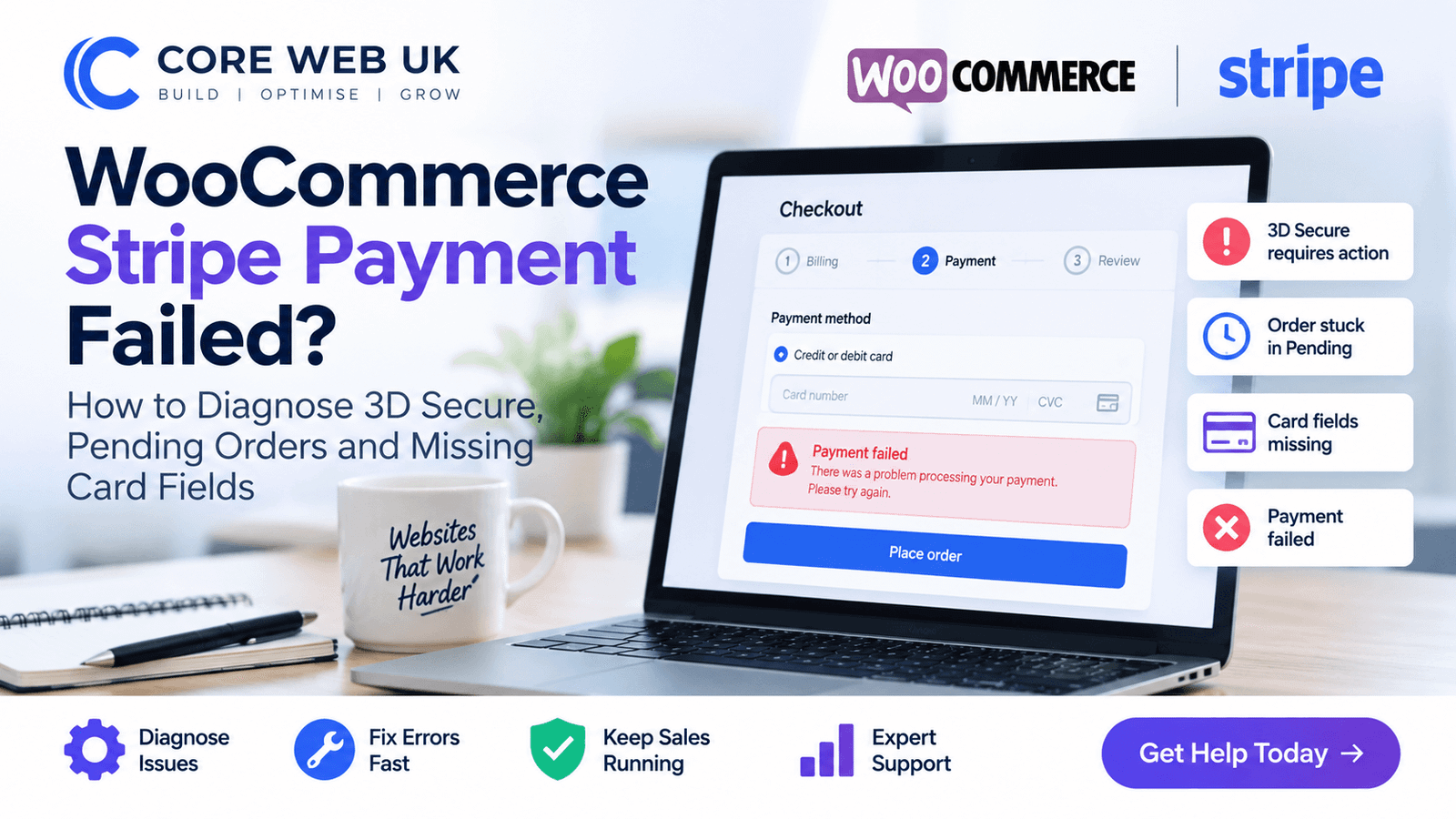
Separate the checkout problem from the payment problem.
If card fields never load, investigate scripts, caching and plugin conflicts. If Stripe creates a PaymentIntent but the WooCommerce order stays Pending or Failed, inspect the payment status, 3D Secure flow, webhooks and gateway logs.
Why Stripe payments can fail even when WooCommerce looks fine
WooCommerce creates the order and Stripe handles the card transaction. Those systems must stay in sync. A payment can require customer action, succeed at Stripe but fail to update WooCommerce, or never reach Stripe because the checkout scripts did not initialise.
Gateway scripts may be blocked, delayed or conflicting.
The bank may need 3D Secure authentication.
WooCommerce may be waiting for payment confirmation.
Webhook or callback communication may be failing.
1. Start with the WooCommerce order notes and Stripe log
Open the failed order and note the exact gateway message. Then compare it with Stripe’s PaymentIntent or charge status. You need to know whether Stripe rejected the payment, required authentication or completed it successfully.
Do not cancel or refund a payment simply because WooCommerce looks uncertain. Confirm what happened in Stripe first.
2. Understand 3D Secure and “requires_action”
Some card payments require the customer to authenticate with their bank. In Stripe’s PaymentIntent flow, that can appear as a state requiring customer action before the payment can complete. If the authentication window is blocked, the customer closes it or the checkout scripts fail, the order may remain incomplete.
Test with the gateway’s supported test mode on staging where possible, not by repeatedly placing live orders.
3. Check webhooks if Stripe says paid but WooCommerce does not
WooCommerce relies on Stripe notifications to learn about events that happen after the initial browser request. If webhook delivery is blocked, misconfigured or failing, the payment state can become out of sync with the order.
Review Stripe webhook delivery results and WooCommerce gateway logs around the same timestamp.
4. Check JavaScript, caching and cookie tools when card fields disappear
Payment fields are loaded dynamically. JavaScript delay, optimisation, consent tools, checkout customisation and other plugins can stop those fields initialising. WooCommerce’s official Stripe checkout troubleshooting guide specifically points to plugin/theme conflicts when card fields or checkout elements fail to load.
Pending, failed or processing?
Intent status and bank response.
Delivered or failed?
Script errors or blocked fields?
5. Check API credentials and mode
Make sure the WooCommerce Stripe extension is using the correct live or test credentials. A staging clone can accidentally retain production settings or vice versa. Do not paste secret keys into screenshots or support tickets.
6. Reproduce with another payment method
If another gateway works, the store’s base checkout may be healthy. If every payment method fails, investigate WooCommerce checkout, JavaScript, tax, shipping, validation and server errors more broadly.
Our WooCommerce checkout troubleshooting guide covers those wider failures.
What should you test after the fix?
- Card fields load on mobile and desktop
- 3D Secure challenge opens and completes
- WooCommerce order status updates correctly
- Stripe shows the same outcome
- Stock and emails update as expected
- Apple Pay / Google Pay display where your setup supports them
A payment problem needs transaction-level evidence.
Do not diagnose it from the front-end message alone. Compare WooCommerce, Stripe, webhook and browser evidence before deciding what failed.
If customers cannot pay now
Use our emergency website fixes service for live WooCommerce and Stripe failures. For regular updates, checkout testing and monitoring, see website maintenance and support.
Separate a customer authentication step from a genuine payment failure
A Stripe payment that enters requires_action is not the same as a declined card. It normally means the payment needs an extra customer step, such as 3D Secure. If the customer closes that challenge, loses the session or never returns to the checkout flow, WooCommerce can be left with a pending or failed order while Stripe has more detailed payment-intent information.
Customer authentication is still required. Do not treat it as a completed payment.
Compare the Woo order notes with the Stripe payment intent before retrying.
Test JavaScript, theme and extension conflicts before changing gateway credentials.
Check webhooks and order synchronisation before asking the customer to pay again.
Webhooks are part of the payment journey
WooCommerce does not rely only on what happens in the customer’s browser. Stripe webhooks can confirm payment events after the initial request. If webhook delivery is blocked, misconfigured or repeatedly failing, Stripe and WooCommerce can disagree about the order state. Check both systems before manually changing an order or creating another charge.
WooCommerce also maintains current guidance for Stripe checkout fields that do not load; missing or unresponsive card fields are commonly investigated as plugin/theme conflicts rather than immediately as a Stripe account problem.
Stripe failure states people commonly search for
Search intent around WooCommerce Stripe failures usually falls into four groups: 3D Secure / requires_action, orders stuck Pending, Stripe shows paid but WooCommerce does not, and card fields or wallets do not load. Each points to a different layer.
3D Secure and requires_action
If the PaymentIntent requires customer action, the payment is not complete yet. Check whether the authentication modal opened, whether it was blocked by scripts or browser settings, and whether the customer completed the bank challenge.
Paid in Stripe but Pending in WooCommerce
That strongly suggests a synchronisation problem. WooCommerce’s Stripe extension uses webhooks for events that happen outside the original checkout request. Check the webhook status, delivery attempts and gateway logs before manually changing the order.
Card fields or Apple Pay / Google Pay missing
Separate eligibility from script failure. Wallets also depend on browser/device/domain requirements. Missing card fields can be caused by plugin/theme conflicts, JavaScript errors, cookie tools or optimisation settings preventing Stripe Elements from initialising.
Test and live mode mismatches
Confirm the site, gateway connection and webhook endpoints are all in the same mode. Staging copies should not accidentally send live transactions, while live stores should not be using stale test credentials.
Competitor gap: reconcile both systems before taking action
The safest payment diagnosis matches the WooCommerce order notes, Stripe PaymentIntent status, webhook result and browser/network evidence at the same timestamp. That prevents double-charging, unnecessary refunds or asking a customer to retry a payment that already succeeded.
FAQ
What does requires_action mean in Stripe?
It generally means the payment needs an additional customer step, commonly bank authentication such as 3D Secure, before it can complete.
Why is the order Pending when Stripe took the payment?
WooCommerce may not have received or processed the payment confirmation. Check webhooks and gateway logs before manually changing order status.
Can caching break Stripe checkout?
Yes. Dynamic checkout pages and payment scripts can be affected by inappropriate page caching or script optimisation.
Start by deciding whether the failure belongs to the customer, Stripe or WooCommerce
| Evidence | Likely layer |
|---|---|
| Card declined with a clear issuer code | Customer/bank decision rather than store configuration |
| Payment Element or card fields never appear | JavaScript, CSP, cache, consent or gateway configuration |
| PaymentIntent requires_action | Customer authentication / 3D Secure flow |
| Stripe says succeeded, WooCommerce remains Pending | Webhook or order synchronisation |
Check Content Security Policy and script optimisation when payment fields vanish
Stripe payment components depend on JavaScript and external Stripe resources. An overly strict Content Security Policy, delayed JavaScript, cookie-consent rule or optimisation plugin can stop the payment element loading even though the Stripe account itself is healthy.
Do not ask the customer to pay again until you reconcile the PaymentIntent
If Stripe records a successful payment, verify the exact amount, currency, order reference and webhook history before telling the customer to retry. This is the safest way to avoid a duplicate charge.
Check webhook signing and endpoint health
A webhook can exist in Stripe and still fail because the endpoint URL is wrong, the signing secret is stale, requests are blocked or the site returns errors. Review recent delivery attempts and the WooCommerce gateway log at the same timestamp.
