
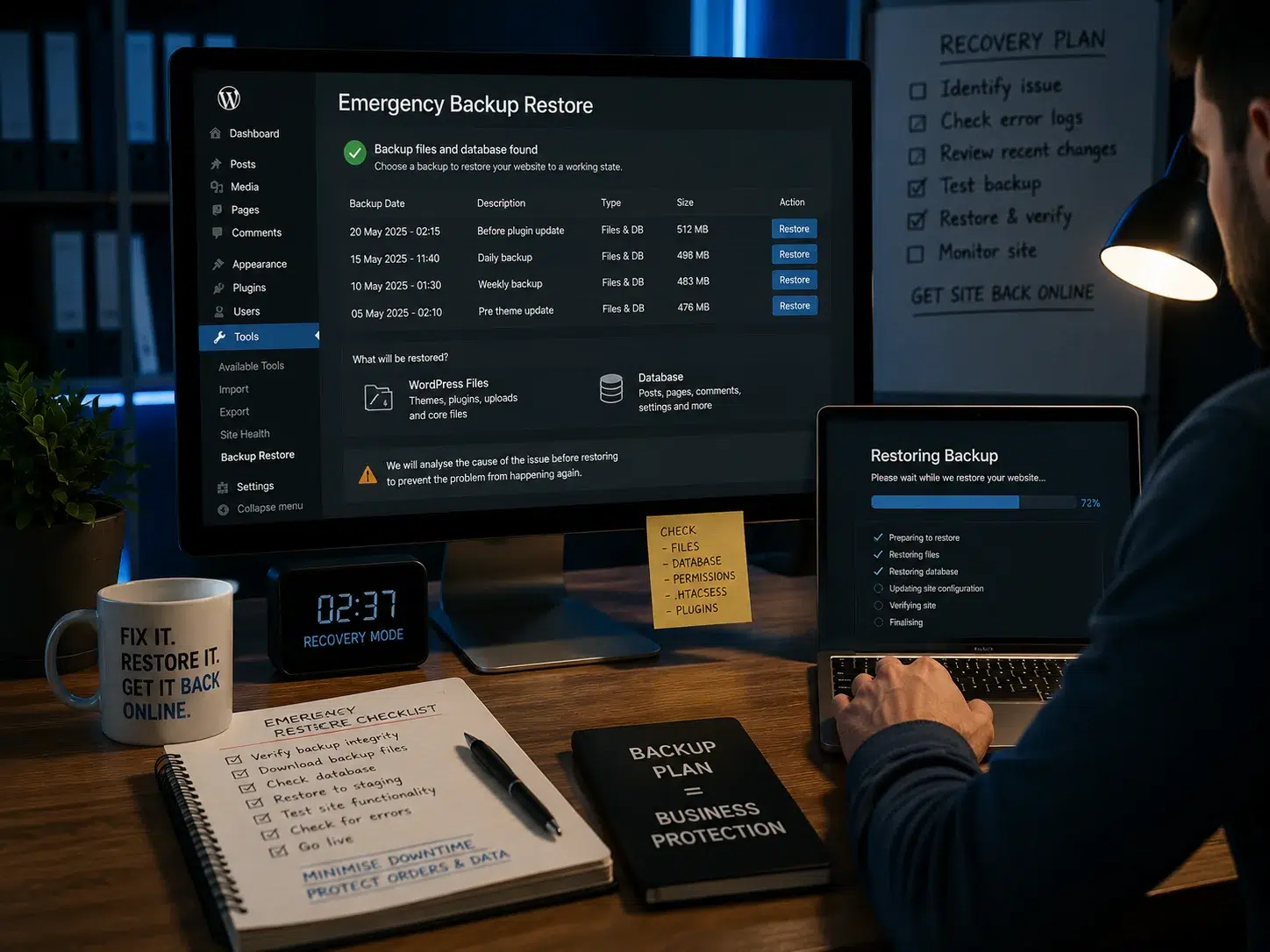
A WordPress backup is only useful if you can turn it back into a working website.
A plugin saying “backup complete” proves that a process finished. It does not prove the database imported correctly, the uploads are complete, the right users exist, forms still work or the website can actually be rebuilt after a serious failure.
The only meaningful test is a restore.
Test the recovery, not the green tick.
Restore a recent backup into an isolated environment, verify the files and database objectively, then test the business functions the site depends on. If you cannot rebuild a usable copy, you do not yet have a proven backup.
What should a complete WordPress backup contain?
At minimum, a full recovery plan needs the pieces required to recreate the site.
- Database: posts, pages, users, settings, plugin data, WooCommerce orders and other dynamic records.
- Uploads: images, documents and other media.
- Themes: active theme, child theme and custom files.
- Plugins: plugin files and any custom or must-use plugins.
- Configuration: the information needed to reconnect WordPress to the database and environment.
- Recovery instructions: where the files are stored, who has access and how the restore is performed.
Some backup tools deliberately exclude files that can be recreated. That can be perfectly valid, but you need to know which parts of the recovery depend on reinstalling or recreating them.
1. Choose a backup you can identify clearly
Before restoring anything, record:
- backup date and time;
- backup type — full, files-only, database-only or incremental;
- storage location;
- site version at the time;
- WordPress version;
- PHP version where relevant;
- the backup tool used.
On a busy store, the timestamp matters because restoring yesterday’s database may remove today’s orders.
The website backup frequency guide explains why recovery-point needs should follow how quickly valuable data changes.
2. Check the backup package before restoring it
Look for obvious warning signs:
- file size suddenly much smaller than normal;
- missing database archive;
- missing uploads;
- storage quota errors;
- backup timestamps that stopped updating;
- remote storage authentication that expired.
This does not prove the backup works, but it can catch simple failures before you spend time on a restore.
3. Restore into an isolated environment
Do not overwrite a healthy live website simply to test recovery.
Use:
- a private staging environment;
- a disposable temporary server;
- a local WordPress environment;
- a fresh empty install where possible.
The WordPress staging guide explains the general principle, although a true recovery rehearsal is even stronger when the destination starts as close to empty as possible.
Why restoring onto an existing staging site can give false confidence
A staging site may already contain:
- a working wp-config.php;
- database credentials;
- a functioning database;
- .htaccess rules;
- server configuration;
- plugins the backup failed to capture.
If the restore borrows those components from staging, you may prove that the data imports, not that the backup can rebuild the site from a real failure.
For high-value sites, occasionally test against a clean destination as well.
4. Match the recovery environment closely enough
Major differences in PHP, database version or server limits can create failures that have nothing to do with the backup itself.
Record the live environment so the restore can be tested under compatible conditions.
5. Verify the database objectively
Do more than click the homepage.
Compare useful counts such as:
- posts;
- pages;
- users;
- orders;
- comments;
- database tables;
- table sizes where practical.
If the restored database contains 60 tables while the live site had 77 at the backup time, that needs investigation even if the homepage looks fine.
6. Verify the files objectively
Check:
- uploads from older and recent dates;
- downloadable files;
- theme assets;
- custom code;
- plugin files;
- media thumbnails and original files.
A page can render correctly while half the media library is missing.
7. Log in to WordPress admin
Confirm an authorised administrator account can:
- log in;
- open the dashboard;
- edit a page;
- view plugins;
- access important settings.
Do not make unnecessary changes. The point is to prove the restored application is usable.
8. Test navigation and content
Open a sample of:
- old pages;
- recent pages;
- blog posts;
- category archives;
- download pages;
- important internal links.
Check both older and newer content included in the backup.
9. Test media and downloads
Open full-size images, PDFs and any customer-facing downloads.
Do not assume thumbnails prove the originals exist.
10. Test forms safely
Form data and email integrations can fail even when the site appears normal.
Submit fictional test data and make sure the message reaches a safe test destination.
Prevent a staging restore from emailing real customers or staff unexpectedly.
11. Test WooCommerce safely
If the site sells online, check:
- products;
- variations;
- basket;
- checkout;
- stock;
- customer accounts;
- orders;
- scheduled actions.
Use sandbox or safe test payment methods. Do not charge a real customer.
12. Test booking or membership systems
Check the workflows that would matter after a disaster:
- availability;
- bookings;
- membership access;
- subscriptions;
- customer logins;
- confirmation emails.
13. Check scheduled tasks
A restored site may look correct while background jobs are broken.
Review WordPress cron and plugin-specific scheduled actions where they are business-critical.
14. Check integrations
Some third-party connections may need reconnecting after a restore.
Examples include:
- payment gateways;
- CRM;
- email marketing;
- SMTP;
- licence servers;
- analytics;
- webhooks.
Document which connections recover automatically and which need manual intervention.
15. Check for domain-change problems
Restoring to a different URL can expose hard-coded or serialised data problems.
Look for:
- images still loading from the live domain;
- links pointing to the wrong environment;
- Elementor or builder content using old URLs;
- mixed-content errors;
- redirect loops.
16. Check the browser console and server logs
A site can look fine while throwing PHP, JavaScript or database errors.
Inspect the logs while performing the test actions.
17. Compare data freshness
Look at the newest record expected at the backup timestamp.
For example:
- newest order;
- newest post;
- newest upload;
- newest form entry;
- newest user.
If those are missing unexpectedly, the backup may be incomplete.
18. Measure the recovery time
Start the clock before locating the backup and stop when the site has passed the critical tests.
This gives you a realistic recovery-time expectation.
A provider promising “30-minute recovery” should be able to prove that the process can actually happen in roughly that window for your site.
19. Record every manual dependency
Write down:
- where credentials live;
- who can access the storage;
- which hosting account is needed;
- which domains need changing;
- which licences need reconnecting;
- which external systems need testing.
During an outage, documentation is more useful than one person’s memory.
20. Keep a recovery runbook
A simple runbook might contain:
- backup tool;
- storage location;
- retention policy;
- restore steps;
- PHP/server requirements;
- latest successful restore test;
- typical recovery time;
- person responsible;
- next test date.
21. Delete the test environment afterwards
A restore contains real production data.
Do not leave old customer records, user accounts or order data sitting on a forgotten public staging URL.
How often should you test WordPress backups?
There is no single schedule for every site.
A useful baseline is:
| Site type | Restore-test approach |
|---|---|
| Simple brochure site | Periodic test and after major backup/hosting changes |
| Lead-generation site | Quarterly can be a sensible baseline |
| WooCommerce / booking | More frequent testing where data and revenue risk are higher |
Event-based testing is just as important.
Repeat a restore test after:
- changing host;
- changing backup tool;
- changing PHP version;
- adding a plugin with custom database tables;
- a major site rebuild;
- a sudden change in archive size or duration.
What if the backup restore fails?
Do not simply try another plugin and forget the failure.
Record the cause.
Common issues include:
- incomplete archive;
- database import timeout;
- storage quota exceeded;
- expired remote-storage token;
- PHP memory limit;
- missing custom tables;
- wrong credentials;
- incompatible environment;
- corrupt files.
Then fix the backup process and repeat the test.
Backup testing during a maintenance takeover
When responsibility for a site changes hands, do not assume the existing backups are reliable because they have been running for years.
The website maintenance takeover checklist treats backup verification as an early priority for exactly this reason.
How backup testing fits into routine maintenance
A strong WordPress maintenance routine should prove both backup completion and recovery readiness.
Backups are the safety net for updates, security incidents and hosting failures. If the safety net has never been tested, every high-risk update is being made on an assumption.
Frequently asked questions
Can I test a WordPress backup on my live site?
You can, but it creates unnecessary risk. A private isolated restore is safer.
Is restoring to staging enough?
It is useful, but occasionally testing on a clean destination gives stronger evidence because an existing staging site can supply configuration that the backup itself did not contain.
How do I know the database restored correctly?
Compare table counts, record counts and important recent data against the expected state at the backup timestamp.
What should I test on a WooCommerce restore?
Products, orders, customers, stock, checkout, payment sandbox, emails and scheduled actions.
How often should backups be restore-tested?
Quarterly is a useful baseline for many business sites, with additional tests after major hosting, backup-tool or application changes.
Does a green backup notification mean the backup works?
No. It confirms the backup process reported success. Only a successful restore and verification proves recovery.
The useful question is not “Do we have backups?” It is “Can we rebuild a working website from one, how long will it take, and what business data would we lose?”
Define RPO and RTO before choosing a backup schedule
Two recovery numbers make backup planning much clearer.
Recovery Point Objective (RPO) is the maximum amount of data the business can afford to lose. If a store can tolerate losing no more than 15 minutes of orders, daily backups are nowhere near enough.
Recovery Time Objective (RTO) is how quickly the site needs to be restored after a serious failure. A backup process that takes eight hours to rebuild a business-critical site may not meet the real operational need.
Verify backup integrity as well as restore success
For higher-value sites, add objective checks such as archive size trends, checksums or hashes where your backup system supports them, database row-count comparisons and recent-record checks. These controls can catch truncated or silently changed backup packages before a disaster.
Automate the rehearsal where possible
Some backup systems can restore or validate backups automatically in an isolated environment. Automation does not remove the need for periodic human testing of forms, checkout and integrations, but it can detect a broken recovery path much sooner than an annual manual test.
