
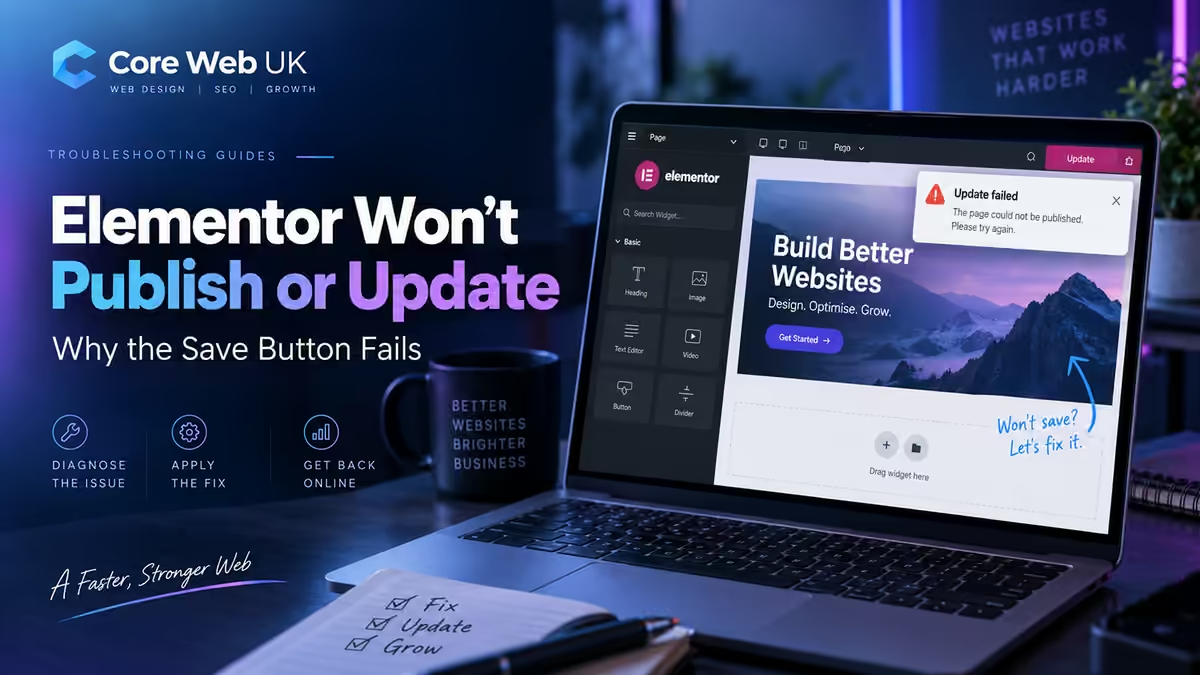
If editing works but saving fails, inspect the request — not just the page.
Look for 403 or 500 errors, PHP/server logs, ModSecurity or firewall blocks, memory limits and page complexity. Test one cause at a time and protect a working revision before changing anything.
Elementor not saving changes after an update
If Elementor stops saving changes after a WordPress, Elementor or Elementor Pro update, first check whether the editor itself still works and whether the failure only happens when you save. A missing Elementor publish button, a missing Elementor update button or an editor that appears to save but never applies the change can point to different parts of the same failed publishing process.
If the Elementor publish button is missing, check that the editor has loaded fully and look for JavaScript errors or a version mismatch. If the Elementor update button is missing after an update, confirm Elementor and Elementor Pro are compatible and clear the relevant cache layers once. If Elementor is not saving changes even though the button is visible, inspect the failed network request, PHP/server logs and any 403 or 500 response before changing the page design.
What a failed Elementor publish request can mean
The Elementor editor sends a larger server request when it saves complex pages. If that request is blocked, times out or crashes, Elementor may leave you with a spinning button, red error, 403 response or 500 error.
Security plugin or server firewall may be blocking the request.
PHP error, memory or server configuration is more likely.
Page size, a widget or corrupted section may be involved.
Check global server, plugin and Elementor conditions.
1. Check the browser network response and server logs
If the save fails, note the HTTP status. A 403 points you in a very different direction from a 500. Ask the host for PHP and web-server error logs around the exact time of the failed publish request.
Elementor’s official Publish / Update troubleshooting guidance specifically recommends checking server logs because the underlying reason can vary.
2. Check security plugins and ModSecurity
A server firewall can mistake a large Elementor request for suspicious traffic. Security plugins can do the same. If the error is a 403 and the problem appeared after a security change, test that layer carefully rather than disabling protection permanently.
Temporary learning or diagnostic modes can help prove the cause, but the final fix should be a precise allow rule or configuration change, not leaving the firewall switched off.
3. Check PHP memory and request limits
Large pages, many widgets, dynamic content and revision history can increase the resources required to save. If the server reaches its memory or execution limit, the editor may stay open while the save request fails.
Raising a limit can confirm the diagnosis, but it should not replace understanding why the page suddenly needs more resources.
4. Test whether one section or widget is causing the failure
If only one page will not save, duplicate the page or work from a revision on staging. Removing the most recently added section, embed, form or custom-code widget can help isolate the problem without destroying the original live version.
403, 500 or timeout?
What failed at that moment?
One page or every page?
Widget, plugin, firewall or update?
5. Clear cache after a successful fix
Once publishing works again, clear the relevant page, hosting and CDN caches that your site uses. Clearing a cache does not repair a save request that still fails. Then verify the page on mobile and desktop.
What if the page contains your live campaign or checkout?
Do not keep experimenting directly on a high-value landing page. Duplicate it, use a staging environment or preserve a revision first. If the page is tied to Google Ads, bookings or ecommerce, one failed save can quickly become lost revenue.
For a wider view of update-related faults, see our website troubleshooting guide.
When this becomes urgent
If you cannot publish a critical price, service or campaign change, use our emergency website fixes service. For ongoing Elementor updates and technical care, see website maintenance and support.
A faster way to diagnose the failed save
Before reinstalling Elementor or changing several settings at once, classify the failure. If the editor opens normally but the save request fails, open the browser developer tools and watch the request triggered by Update. A 403 usually sends you towards a security rule, WAF or ModSecurity. A 500 points more strongly towards PHP, memory, code or server errors. A timeout or 502/504 suggests the request is reaching the server but not completing in time.
Check WAF, ModSecurity, security plugins and blocked request payloads.
Check PHP error logs, memory and the most recent code/plugin change.
Check server workers, PHP processes, timeouts and upstream services.
Suspect page complexity, a widget, embed or damaged section before global settings.
Do not solve a save problem by creating a live-site problem
On a business-critical page, the safest investigation is a duplicate or staging copy. Preserve a working revision first, reproduce the failure, then change one variable at a time. If the page is tied to paid traffic, bookings or checkout, verify the public page after every repair rather than assuming a successful editor save means the customer journey still works.
Match the symptom to the right check
Different symptoms need different checks: Elementor update button not working, Elementor 403 error on update, Elementor 500 error when saving, Elementor stuck on saving and Elementor failed to update. Those symptoms should be diagnosed differently rather than treated as one generic fault.
403 when clicking Update
Prioritise security plugins, ModSecurity/WAF rules and server firewalls. Elementor’s own support documentation specifically identifies security plugins and server firewalls as common causes of a 403 save failure.
500 when publishing
Check PHP logs, memory and fatal errors. Ask the host to compare the effective WordPress and PHP memory limits with Elementor’s current requirements and the error log. A higher value written in a configuration file cannot override a lower hosting limit. A 500 on one page also raises the possibility of a problematic section, widget or page-specific code.
413 or admin-ajax timeout
Large save requests can hit request-size or timeout limits. The browser Network panel can reveal whether admin-ajax.php, REST requests or another save endpoint is failing rather than guessing from the button animation.
Update button greyed out
Check whether the page has valid changes, whether the editor is fully initialised, and whether a JavaScript error has stopped Elementor from registering the save state.
Prove the failing layer before changing limits
Before increasing memory or changing security, use this sequence: status code → browser/network evidence → PHP/server logs → recent change → controlled test. That prevents a temporary workaround becoming the permanent configuration.
FAQ
Why does Elementor give a 403 when I click Update?
A firewall, ModSecurity rule or security plugin may be blocking the save request. Confirm with logs before changing protection.
Can too many revisions stop Elementor publishing?
Large revision history can contribute to resource use on some sites, but it should be diagnosed alongside memory, page size and server limits rather than assumed.
Should I reinstall Elementor?
Not as the first step. A save failure is often a server or security issue. Preserve a backup and diagnose the request first.
Why can Elementor edit but fail to publish?
The editor can load normally while the save request fails in the background. Common causes include server limits, security rules, PHP errors and plugin conflicts.
Check the failed request before changing the page design.
- Look for 403 or 500 errors.
- Check PHP and server logs.
- Review ModSecurity or firewall rules.
- Test on staging if the page is business-critical.
Missing button, failed save or old public page?
- The button is missing or disabled: preserve unsaved text before refreshing. Check that you opened the correct page with an account allowed to edit it, that the editor finished loading and that you made a change. Record any browser-console error and the installed Elementor and Pro versions. A missing control alone does not prove a server-memory problem.
- The button spins or reports an error: record the time, page and failed request’s status. If you are comfortable using browser developer tools, open Network, reproduce one save attempt and inspect the failed request. Otherwise ask the developer to collect it. The status narrows the investigation; logs are needed to establish the cause.
- The save succeeds but visitors see the old page: confirm the correct domain, page or template, published status and template conditions. Then clear the relevant caches and check the clean public URL while logged out. A preview link can show unsaved work that visitors cannot see.
Preserve recovery options while testing
Keep a backup and a usable revision before removing sections or testing plugins on a staging copy. Do not delete all revisions as the first fix: that removes a recovery option without proving the cause. Do not change the live permalink structure or run a site-wide URL replacement just because a save button spins.
For outdated styles after a successful save, Elementor’s current guidance uses Elementor → Tools → Clear Files & Data; older versions may show different wording. This is different from fixing a failed save. Avoid disabling layout features used by the page or switching all live plugins off as a generic first step.
What to send your host or repair provider
Send the affected public URL, exact time and timezone, error text/status, whether one or all pages fail, recent changes and installed versions. Share logs privately with sensitive values removed. Ask for the matching PHP/firewall entry, the proposed fix and a check that the public page and its enquiry or checkout action still work. Never post administrator passwords, session cookies or private request tokens in a public forum.
References checked on 23 October 2026: Elementor’s publish and update troubleshooting and Elementor’s guidance when changes do not appear online.
