
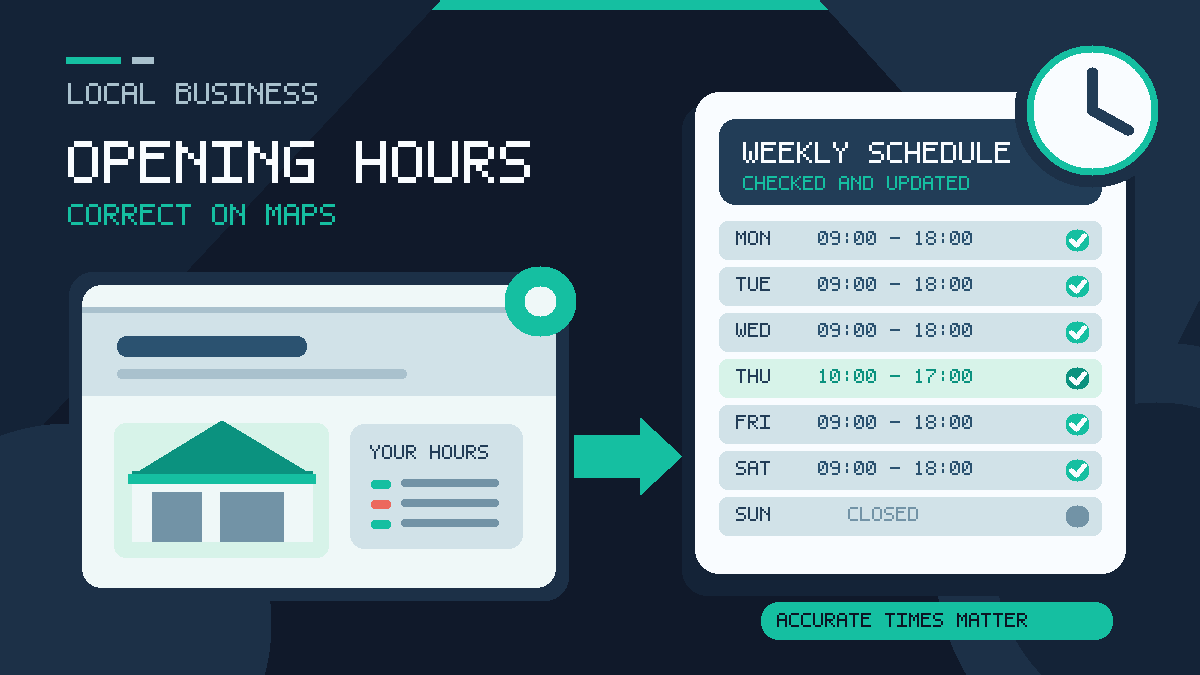
A customer checks Google Maps, sees that you are open and makes the journey. When they arrive, the door is locked. Or Google says you are closed even though your team is ready to take bookings.
Wrong opening hours can cost a local business calls, visits and trust. The good news is that most mistakes are straightforward to put right once you know which hours setting Google is showing.
If your Google Business Profile opening hours are wrong, sign in to the Google account that manages the listing, open Edit profile → Hours and check your regular weekly schedule first. Use Special hours for bank holidays or short exceptions. If your corrected times will not appear, check the edit status instead of repeatedly changing the same field.
This guide is for UK business owners: shops, cafés, salons, tradespeople, clinics and service businesses. You do not need to be a developer.
Why does Google show the wrong opening hours?
There is not one single cause. The way to fix the problem depends on how the incorrect time got there.
- Your regular weekly hours are outdated. Perhaps the business now closes earlier on Saturdays or opens later on Mondays.
- A bank holiday or special event was not added. Google may still show the normal Monday schedule when your premises are closed.
- A change is pending or was not approved. Saving an edit does not always mean the public listing has changed.
- Google has applied an update. Business information can change after reports from users or other sources.
- You edited the wrong hours field. Delivery hours, main hours and temporary closures serve different purposes.
- You are viewing a different profile. A duplicate location or an old business entry can create confusion.
- Different websites show different times. Outdated opening hours on your own website or widely used listings can leave customers unsure which version is correct.
First, search for your exact business name on Google and open the listing in Maps. Note the hours that customers currently see. Then compare them with your actual operation, day by day, before changing anything.
How to change your normal opening hours on Google
These steps are based on Google’s current business-hours instructions. The wording of buttons may differ slightly between Google Search, Maps, desktop and mobile.
- Sign in to the managing Google account. Use the account with owner or manager access to the correct Business Profile.
- Open the business listing. Search for your business while signed in, or manage it through Google Business Profile.
- Select Edit profile, then Hours. Find the main Business hours field rather than Special hours or More hours.
- Choose Open with main hours. This is appropriate where your business has normal, repeatable customer-facing operating times.
- Tick the days you actually open. Enter the correct opening and closing time for each day. Leave a day marked closed if it really is closed.
- Add separate periods for a midday break. For example, enter 09:00–13:00 and 14:00–18:00 rather than pretending you are open throughout lunch.
- Save, then check the public listing. Do not assume the customer-facing hours have changed until you can see the update.
Example: A salon opens Monday to Friday from 09:00 to 17:30, Saturday from 09:00 to 14:00 and closes Sunday. Those weekly times belong in main hours. A one-off Sunday Christmas event does not: that belongs in Special hours for the relevant date.
If you cannot see the option to edit the listing, check that you are using the right account. Persistent access problems may need a separate Business Profile verification check before you can manage everything reliably.
Which Google opening-hours setting should you use?
The most important decision is choosing the correct field. There are several kinds of hours, and they are not interchangeable.
| What is happening? | Choose this setting | Example |
|---|---|---|
| Your normal schedule repeats every week | Main hours | Monday–Friday, 09:00–17:30 |
| You have a one-off early close, bank holiday or brief closure | Special hours | Christmas Eve, 09:00–13:00 |
| An eligible service has its own timetable | More hours | Takeaway or delivery hours at a restaurant |
| You have no regular public-facing hours | Open with no main hours, if suitable for your business | Some appointment-only businesses |
| You are closed for a week or more, or indefinitely but expect to return | Temporarily closed | Long repairs or a seasonal shutdown |
| The business has stopped operating permanently | Permanently closed | A location that has closed for good |
Google’s instructions say Special hours are for temporary changes or closures lasting six consecutive days or fewer. For a closure of seven or more days, Google directs businesses towards Temporarily closed. Do not mark an otherwise open business as temporarily closed just to cover one bank holiday.
How to set bank holiday and Christmas opening hours
Many businesses only notice an opening-hours problem when a customer arrives on a public holiday. The safer approach is to set exceptional dates before the holiday period starts.
- Open the correct Business Profile, then Edit profile → Hours.
- Find Special hours and select Edit.
- Choose a date Google suggests, or add the date yourself.
- If you are closed all day, mark it closed. If you are open, enter the full opening and closing times for that date.
- Repeat for each affected date and save.
- Return to the public listing to check the updated hours when Google has processed the change.
Keep your weekly opening times as they are. Special hours apply to the named date rather than changing every future Monday or Friday.
Even if you will open as normal on an official holiday, Google’s Special hours guidance recommends confirming that fact. It reassures customers who are checking whether your usual timetable still applies.
For a UK business, check the relevant dates before Christmas, Boxing Day, New Year’s Day, Easter and local bank holidays. The dates and replacement bank holidays can differ across England, Wales, Scotland and Northern Ireland, so use the dates relevant to your actual premises.
Common mistake: A shop that closes at 13:00 on Christmas Eve changes its regular Thursday hours to 09:00–13:00. It then forgets to change Thursday back, so Google says it closes at lunchtime every week. Special hours avoid that mistake.
What if Google will not update your opening hours?
If you have saved the correct times but the public listing still shows the old ones, do not keep resubmitting every few minutes. Work through this order instead.
1. Look for a pending or not-approved edit
Open the Business Profile editor and inspect the edit status. Google says most edits are reviewed within about ten minutes, although some can take up to 30 days. A pending edit is not the same as a rejected edit.
When a change is marked Not approved, Google may have been unable to confirm it. The next step is to check the accuracy of the information and the available support route, not to invent slightly different opening times.
For wider account and profile changes, our explanation of pending or rejected Google Business Profile edits shows how the review process works.
2. Check ownership and verification
Make sure you are editing the correct location in the correct Google account. A former staff member, agency or business owner might still control the profile. If you can only suggest an edit as a member of the public, you may not have management access.
Verification can also limit what you are able to manage. Google’s help centre confirms that some details can be edited before verification, but a verified profile is needed to manage all business information.
3. Check the real hours shown on your website
Look at your contact page, footer, booking page and location pages. Are the opening hours identical to what you want Google to show?
Do not alter genuine trading hours simply to match what Google currently displays. Correct the wrong source. When your website shows last year’s timetable, update it so customers are not receiving conflicting advice.
4. Review Google’s suggested updates
Google says it may update profile information based on user reports and other sources. Check for a notification in the profile editor and review any change Google has applied. Google may allow a limited period to accept or reject some suggested edits.
Keep a simple record: a screenshot of the incorrect public hours, another of the correct website hours, the exact edit you submitted and the date you submitted it. This is useful if you later contact support.
5. Contact support when a genuine change stays stuck
If the correct edit cannot be made or continues to be rejected, use the support options offered inside Google Business Profile. Explain the business’s real schedule and which dates or hours are wrong. Include the screenshots and supporting information.
Some appeal routes are specific to particular kinds of rejected information. Do not assume every hours problem has the same appeal button as a rejected address or category change. Google has a separate explanation of Business Profile edit statuses.
Avoid this workaround: Do not ask friends or paid reviewers to submit coordinated false edits. The goal is to show accurate information backed by the real operation, not to manipulate Google’s checks.
Should a 24-hour emergency business show as open 24/7?
Only if that reflects the business’s genuine operation. A locksmith, plumber or emergency repair service may be available around the clock, but a contact form that nobody answers overnight is not the same as offering a real 24-hour service.
Before selecting the 24-hour option, ask:
- Can customers contact us and receive the advertised service during those hours?
- Are people genuinely on call, rather than just leaving voicemail for the morning?
- Are customers being invited to visit a location that does not serve walk-ins?
- Do our website and recorded phone message explain after-hours arrangements accurately?
If you really operate 24 hours on particular days, Google provides a 24 hours option for those days in main hours. Do not enter invented opening and closing times to create the appearance of permanent availability.
For mobile trades working from home or a private office, opening hours and address visibility are separate decisions. Follow the correct Google Business Profile setup for service-area businesses so your hours do not imply that customers can visit a hidden home address.
How do lunch breaks, late nights and overnight hours work?
Use times that match the actual customer journey, not the timetable that looks most impressive.
| Business example | What to enter | Why |
|---|---|---|
| A café opens 08:00–12:00 and 13:00–16:00 | Two periods on the same day | Customers can see the lunchtime closure |
| A genuine 24-hour breakdown service | 24 hours on the days it operates | Reflects actual around-the-clock service |
| A shop closes early for staff training next Tuesday | Special hours for that Tuesday | The regular weekly schedule stays unchanged |
| A venue trades past midnight | Check how its schedule crosses the date boundary | A late finish belongs to the correct operating night |
| A restaurant offers delivery later than dine-in | Eligible More hours for that service | Separates service-specific availability from the main opening schedule |
Google lets you add two opening periods on one day for a break. For a special event that runs overnight, check the dates carefully: Google’s Special hours guidance explains that some overnight periods need to be split across two dates. Do not assume a single time range will always cover the next morning correctly.
Google also supports More hours for eligible services, such as delivery, takeaway or drive-through. Google advises keeping these within the main hours and setting main hours first. The available types depend on the business.
What if you are closed for a week or more?
A long closure is not the same as a public holiday. If your premises will be shut for seven consecutive days or more, or for an unknown period, review the option to mark the location Temporarily closed. Use Permanently closed only where the location has genuinely stopped operating for good.
Think about what customers need to know while you are closed. For example, an independent retailer might not accept visits during building works but may still answer online enquiries. Say that clearly on its website rather than displaying an ordinary open-to-visitors schedule on Maps.
When the business reopens, update its status and recheck all its main and special hours. A forgotten temporarily-closed label can be as confusing as the original wrong-hours problem.
Google changed your hours without asking: what can you do?
This can happen. Google says it uses information from customers and other sources to keep profiles accurate. Some suggested changes are shown for review; others may be applied without you approving each one individually.
Start with the facts. Check whether your website, delivery platform, social profile, directory entry or signage still shows an old timetable. Fix information you control and correct the Business Profile. Save a screenshot of any unexpected change.
For one business with several genuinely staffed branches, check each location separately. Do not assume that changing hours on one profile will fix another. And do not create a second listing to get around a stubborn edit — duplicate profiles can create a different problem altogether.
A regular monthly check catches these mistakes before the next busy season. It also helps you separate a genuine visibility issue from a basic customer-information error. If you are worried that your profile has disappeared from local search, the diagnosis is different from simply fixing hours; see the checks for a Business Profile that is not ranking in Google Maps.
Keep one record of the hours problem
Correct location: business name and public Maps link.
Actual schedule: the day, full opening periods, breaks and any exceptional date.
What is wrong: the displayed times, an incorrect “open now” label, a rejected edit or a change that later returns.
Evidence: dated screenshots of the public result, editor status and correct website information.
Last action: the field changed, time submitted and accepted/pending/not-approved status.
Correct hours but the wrong “open now” label?
Record the exact local date and time when the label is wrong, including the time zone and whether the schedule crosses midnight. Compare Search and Maps for the same profile and date. This is different from entering the wrong weekly timetable. Do not change Google Calendar settings or your real opening times merely because a forum user suggested it; send support a reproducible example.
Hours keep changing after an accepted edit?
Check authorised listing-management tools and the source timetable they publish, as well as your website and other public listings. Coordinate the correction with whoever manages those tools. Do not remove owners, revoke unrelated access or disconnect a useful integration without confirming that it is involved. A matching website can support accurate information, but it cannot guarantee that Google will never apply another update.
Agree what a successful correction means
If you ask a local SEO provider for help, request the correct profile link, which hours field was wrong, its edit status and public before/after evidence. Verify the normal week and the next exceptional date separately. A saved editor screen is not proof that customers can see the correction, and accurate hours do not guarantee a ranking increase.
A simple opening-hours checklist for UK businesses
Use this before a holiday, seasonal timetable change or new trading arrangement:
- Write down your actual weekly opening hours and any breaks.
- Check the hours shown publicly in Google Search and Google Maps.
- Confirm you are editing the correct profile and Google account.
- Update main hours only if the weekly routine has changed.
- Use Special hours for bank holidays, events and short exceptions.
- Check any eligible More hours, such as delivery or takeaway.
- Review your website’s contact page, footer, booking forms and location pages.
- Check the Google edit status, then verify the published result.
- Keep a screenshot and date of the change for future reference.
- Repeat the check before each major UK holiday period.
For busy owners, put a recurring reminder in the calendar a couple of weeks before the next bank holiday. Correcting the hours in advance is easier than explaining to an annoyed customer why the information was wrong.
Frequently asked questions
How long does Google take to change opening hours?
Google says most Business Profile edits are reviewed in around ten minutes, but some can take up to 30 days. Check whether the edit is accepted, pending or not approved. There is no guaranteed publication time for every change.
Can customers change my opening hours on Google?
Customers can suggest updates, and Google may use reports and other sources to change business information. Owners should review notifications and regularly check the public listing. Do not assume only your team can influence the displayed hours.
Should I change my normal hours for a bank holiday?
No. Use Special hours for a holiday or short exception. Your regular weekly schedule should remain correct for the following weeks.
Does choosing 24/7 make a business rank higher?
Do not use 24-hour hours as a ranking tactic. The setting should reflect real availability. Misleading hours can damage customer trust, and there is no safe reason to promise a ranking boost from entering hours you do not keep.
Why do my special hours not appear?
Google says Special hours require the profile to be set to Open with main hours. Check that setting first. Then check that you selected the correct date, saved the full day’s hours and allowed any review to complete.
What if my business only takes appointments?
Do not invent public visiting hours merely to fill a field. For a business without regular customer-facing hours, Google’s option to show no main hours may be appropriate. Make your booking process and contact arrangements clear on your website.
Will fixing opening hours solve every local SEO problem?
No. Correct hours help customers understand when they can reach you, but local visibility also depends on how relevant and trustworthy your business appears for the search. If your listing is accurate but customers still cannot find it, that needs a wider local SEO review.
When to ask for help
If your Google hours keep changing, an edit has stayed stuck, or several branches and website pages show conflicting information, it may be worth getting someone to check the full setup rather than submitting the same edit again.
Core Web UK’s local SEO services for UK businesses can help identify whether the problem is the Business Profile, the website information or something wider. The first priority is always accurate details that customers can trust — not another change made purely for appearances.
