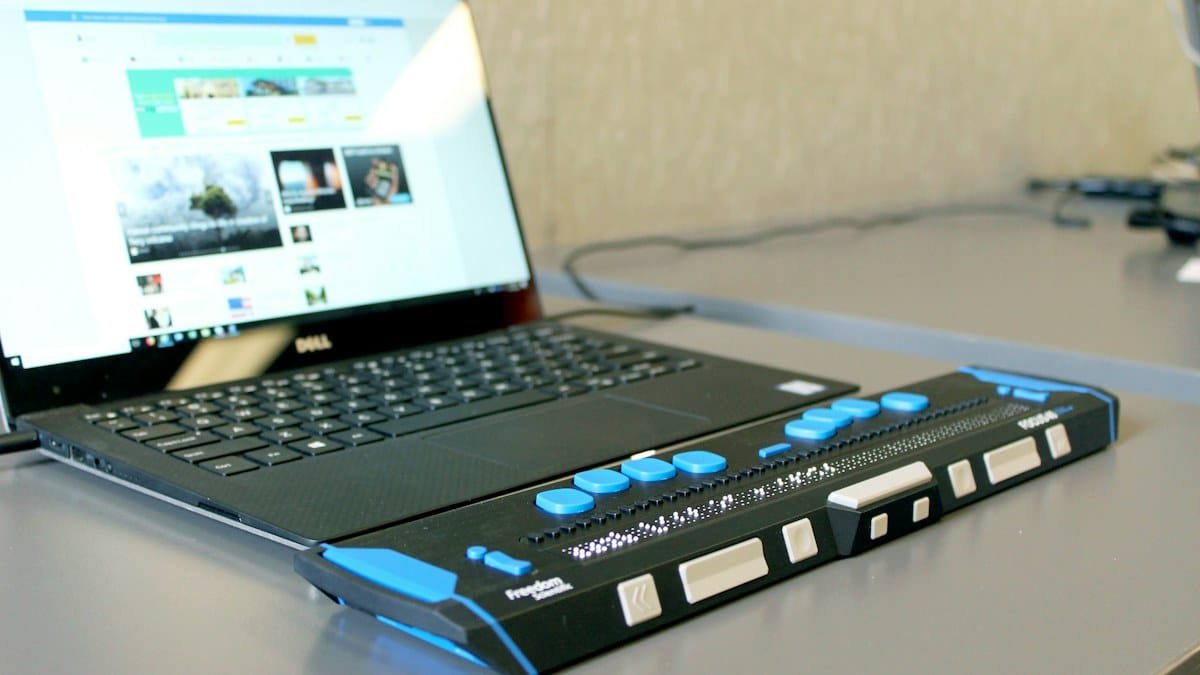
Can someone use your website without a mouse? Can they read the writing when they zoom in? Can they finish a booking if they use a screen reader? These are everyday website accessibility questions, not just technical details.
Website accessibility means making your site usable by people with different needs and ways of using technology. That includes visitors who have low vision, cannot use a mouse, have limited hand movement, are deaf or hard of hearing, or find complicated forms difficult.
For a small UK business, the best starting point is the customer journey. A visitor needs to understand what you do, find the right service and contact or pay you. If the menu, form or checkout becomes a barrier, the business can lose an enquiry even though the site appears to work.
This guide is written for business owners rather than developers. It explains what to check yourself, what to ask your website provider to fix and where UK legal requirements differ. The practical target used here is WCAG 2.2 Level AA, a widely used web accessibility standard, but it is important not to confuse a technical standard with a blanket legal requirement for every private business.
1. Do UK business websites have to be accessible?
In Great Britain, businesses providing services to the public have duties under the Equality Act 2010, including making reasonable adjustments for disabled people. In Northern Ireland, the Disability Discrimination Act 1995 applies. How those duties apply depends on the service and circumstances, so a business should not assume an inaccessible website is harmless simply because it is privately owned.
The separate Public Sector Bodies (Websites and Mobile Applications) Accessibility Regulations 2018 apply to many public sector organisations. Those bodies have specific requirements, including accessibility standards and accessibility statements, with exemptions and exceptions in some cases. They do not apply automatically to every private shop, plumber or local agency.
Here is the practical distinction:
| Question | What UK business owners should know |
|---|---|
| Does every private UK website have to pass WCAG 2.2 AA by law? | No. WCAG is a technical standard, not a single automatic statutory test for all private firms. Duties to make reasonable adjustments can still apply. |
| Do public sector websites have separate rules? | Yes. Specific regulations apply, subject to exemptions and the circumstances of the organisation. |
| Is WCAG 2.2 AA useful for a private business? | Yes. It gives a clear benchmark for improving how people use a website. |
| Does an accessibility statement make an inaccessible site compliant? | No. A statement cannot replace improvements to the website itself. |
| What about a UK business selling into the EU? | Separate overseas accessibility rules may be relevant to certain services. Check the services, customers and jurisdictions involved before making legal assumptions. |
The UK government’s public sector accessibility guidance explains the distinction between the 2018 regulations and wider duties to make reasonable adjustments. For a specific legal concern, take advice based on your own organisation.
2. Start with the three tasks that bring you customers
You do not have to read the entire technical standard before finding useful problems. Start with three journeys:
- Find a service: Can a visitor reach a service page using the menu and understand the price, coverage or next step?
- Make contact: Can they tap the phone number, open a contact form, understand every question and send an enquiry?
- Book or buy: Can they choose an appointment, use a calendar, enter details and complete payment without getting stuck?
Test these journeys on a desktop and a phone. If your site has a separate booking or payment system, test that too. A polished homepage does not help if an embedded calendar cannot be used with a keyboard or the checkout gives a vague error.
When reviewing a new design, your business website design requirements should include these real customer tasks, not just screenshots of the homepage. If your site already gets visitors but too few enquiries, the website conversion checks can sit alongside an accessibility review.
3. Twelve accessibility checks you can make yourself
These checks will not prove full WCAG compliance. They are a practical way to uncover common problems before asking a specialist to test the website properly.
Check 1: Use the website with the keyboard only
On a laptop or desktop, put the mouse aside. Press Tab to move through links, buttons and form fields; use Enter or Space to activate them. Can you reach the menu, service links and submit button? Is it obvious which item is selected?
If focus disappears, moves in a confusing order or gets trapped in a pop-up, record the page and the exact step. Do not assume a visitor has a mouse.
Check 2: Make sure important buttons can be seen
Look at your call, book and send buttons. Can you tell where they are? Do they stand out against the background without relying only on colour? Check that a visible keyboard focus outline has not been removed by the website theme.
Also test the cookie banner. It must not cover the whole booking form or prevent someone from reaching the page with a keyboard.
Check 3: Zoom the page to 200%
Use your browser’s zoom control and increase the page to 200%. The text should remain readable. People should not have to scroll sideways to read ordinary paragraphs. Buttons, menus and forms should still work.
Then check a narrow mobile screen. If text overlaps, menus disappear or essential controls are cut off, ask your web designer to correct the layout rather than telling people to zoom out.
Check 4: Test text and button contrast
Pale grey text on white may look fashionable but can be hard to read. WCAG 2.2 AA generally calls for at least 4.5:1 contrast for normal text and 3:1 for large text, with stated exceptions. The W3C WCAG 2.2 reference explains the detailed criteria.
Pay particular attention to small footer text, prices, form labels, placeholder wording and pale buttons over photographs. A contrast checker helps, but you still need to look at the real page in different states.
Check 5: Read your headings in order
Your page should have one clear subject and headings that divide it into sensible sections. A heading should explain what comes next, not merely look big. Avoid jumping from a main heading straight to a much deeper level because a particular font size looks better.
Clear headings help people scan a service page and help assistive technology users understand the structure. They also make your content easier for ordinary readers.
Check 6: Describe useful images
A photograph that shows a customer-facing service or illustrates an instruction should have a short, accurate text alternative. A purely decorative image may need an empty alt attribute instead. Do not fill every image description with a search keyword.
For example, “Electrician inspecting a consumer unit” tells a visitor more than “best affordable electrician in south London”. If an image contains essential text, make sure the information is also available as real text on the page.
Check 7: Give forms clear labels and instructions
Open your contact form and look at each field. Does it say what information is required? Is “Email address” still clear after you start typing? Can you move through fields with Tab? Does the website explain what to do if a field is entered incorrectly?
Do not rely on disappearing placeholder text as the only label. After submission, confirm whether the form was sent, and check the message reaches the right inbox. The contact form delivery checks cover that last step.
Check 8: Review error messages
Type an incomplete email address or leave a required field blank. A message such as “Something went wrong” is not enough. A useful error identifies the problem near the relevant field and gives a plain-English next step.
For ecommerce and booking websites, test payment and calendar errors as well. Someone should not lose their place because a single field needs correcting.
Check 9: Add captions to important videos
If you use a video to explain a service or teach customers how to use a product, make the spoken information available to people who cannot hear it. Check that captions are accurate rather than assuming automatic captions got every product name and instruction right.
If the video shows steps that are not described in the audio, consider whether additional description or an accessible text alternative is needed.
Check 10: Make links mean something
A link labelled “click here” may not explain its destination when someone navigates a list of links. Write descriptive words such as “request a website quote” or “compare maintenance plans”. Avoid several identical “learn more” buttons leading to different places without context.
This makes the page more understandable and helps customers decide what to do next.
Check 11: Check pop-ups and third-party tools
Many problems come from tools added after launch: chat windows, review widgets, cookie banners, embedded maps, appointment calendars and payment forms. Try each one with the keyboard and zoomed text.
Do not assume a popular plugin is accessible in your particular setup. It still needs testing with your theme, colours, content and other plugins.
Check 12: Test real content, not just the template
A well-built template can become hard to use after somebody uploads a poorly structured PDF, a tiny screenshot of a price list or a table that overflows on mobile. Check important documents, menus, downloadable forms and any change made by staff.
Accessibility is something a business maintains, not a box ticked on launch day.
4. Which accessibility problems should you fix first?
Do the work in the order that removes the most serious customer barriers, not simply the order a scanning tool lists issues.
| Priority | Example problem | Why it matters | First action |
|---|---|---|---|
| Urgent | Booking, payment or contact form cannot be completed with a keyboard | Customers may be unable to use the service | Test the exact journey and repair the blocking control |
| Urgent | Navigation or cookie banner traps keyboard focus | Visitors cannot reach important content | Fix focus handling and retest the whole journey |
| High | Form fields have no clear labels or useful errors | People cannot understand what to enter | Add persistent labels and specific error messages |
| High | Critical text or buttons are hard to read | Important information may be missed | Improve contrast, size and layout |
| High | Important pages break when zoomed | Visitors cannot read or complete tasks | Fix responsive layouts at high zoom |
| Planned | Decorative image descriptions or small content inconsistencies | May reduce clarity but may not block a key task | Resolve during the next content and design review |
These priorities are a practical business triage, not a substitute for a complete assessment. Different users can be affected by different issues, so a professional audit may identify urgent problems you do not notice yourself.
5. A 45-minute accessibility check for a small website
Choose a sample of pages rather than clicking around without a plan. For a typical local business website, use the homepage, one main service page, the contact page and a booking or payment page if you have one.
- Minutes 0–10: Use Tab and Enter on the homepage. Note any controls you cannot reach or activate.
- Minutes 10–20: Zoom a service page to 200%. Check headings, text, prices, buttons and horizontal scrolling.
- Minutes 20–30: Test the contact form, including missing information and error messages. Make a real test submission.
- Minutes 30–40: Check the booking or checkout journey, cookie banner and any pop-up or chat tool.
- Minutes 40–45: Write down the three most serious barriers, the pages affected and the next owner for each fix.
For deeper testing, the DWP’s basic accessibility checks are a useful starting point. They explicitly explain that a short checklist cannot establish full compliance.
6. What to ask your WordPress or Elementor developer
Many business websites use WordPress, Elementor, WooCommerce and several add-ons. The right question is not “Can you install an accessibility plugin?” It is “Can you show me the important tasks working for people who use the site differently?”
Ask your provider to check:
- Menus, accordions and tabs can be operated using a keyboard.
- Every form field has a proper visible label and clear error message.
- Buttons and links have understandable names, including icons.
- Headings follow a useful structure rather than a visual styling shortcut.
- Text remains legible when zoomed and on smaller screens.
- Cookie consent, pop-ups and booking widgets do not trap focus.
- The checkout works with the same accessibility checks as the rest of the website.
- New content, images and documents are reviewed before publishing.
If a developer suggests a one-click overlay or toolbar as the whole solution, ask what underlying issues it fixes. An overlay cannot be assumed to repair missing labels, broken keyboard behaviour, inaccessible documents or flawed checkout steps.
A website maintenance and support plan can include regular testing of important customer journeys and updates. That is different from claiming a site is fully accessible simply because its plugins are current.
7. Accessibility and SEO: where do they overlap?
Accessibility and SEO are not the same thing. You should not assume that passing an accessibility test guarantees higher Google rankings. But several sensible practices help visitors and make site content easier to understand:
- Useful headings explain the subject of each section.
- Clear descriptive links help people choose the next page.
- Readable content and simple language make services easier to assess.
- Good page structure helps users navigate long explanations.
- Accurate alternative text explains useful images without stuffing keywords.
Search engine visibility is valuable only when visitors can use the site once they arrive. That is why accessibility belongs in the same conversation as design, content, forms and conversions, even though it requires its own checks.
8. How do you know whether a website is genuinely accessible?
An automatic scanner is useful for spotting some faults, but it cannot tell you whether every task makes sense to a person. A serious accessibility review combines automated checks with manual keyboard testing, screen reader testing and, where possible, feedback from people who use assistive technology.
Ask an auditor to explain which pages and journeys were tested, which WCAG criteria were checked, what was outside the scope and how fixes will be retested. A statement such as “100% accessible” is not convincing without a clear method and evidence.
For public sector work, follow the applicable formal standards and statement requirements. The government’s accessibility testing and statement guidance describes sampling, auditing and keeping information up to date. Private businesses can use the testing principles without claiming the public sector rules automatically apply to them.
9. Common questions from UK business owners
Will an accessibility plugin make my WordPress website compliant?
Not on its own. Some tools can help users adjust how content appears, but they do not automatically repair missing form labels, keyboard traps, confusing error messages or inaccessible PDFs. Test the underlying website.
Is WCAG 2.2 AA mandatory for every private UK company?
No single law makes it a universal checklist requirement for every private site. Duties to make reasonable adjustments still matter, and specific types of organisation or services may face separate requirements. Take advice if your legal position is unclear.
Do I need to rebuild my website?
Not necessarily. Many problems can be fixed by updating the existing layout, forms, text, styles and widgets. A rebuild may be sensible if the underlying theme or booking system repeatedly blocks customers and cannot be repaired economically.
How often should we check accessibility?
Test important journeys before launch, after major redesigns and after changes to forms, menus, checkout or booking software. Include routine spot checks in your content and maintenance process.
Does a high Lighthouse accessibility score mean the site is accessible?
No. Automated checks cover only part of the picture. Keyboard behaviour, screen reader output, understandable content and real customer tasks still need manual testing.
10. A sensible next step for your business
Pick the pages that matter commercially: your main service, contact, booking and checkout pages. Run the keyboard, zoom and form tests above. Record problems with screenshots and short descriptions. Then ask your developer to prioritise fixes that stop people completing a task.
If your site needs practical help, contact Core Web UK with the affected page and what happens when you try to use it. We can assess the website problem and explain the appropriate next steps without promising that a plugin or one score solves everything.
Authoritative references: W3C WCAG 2.2; GOV.UK accessibility requirements; DWP accessibility testing checks.
