
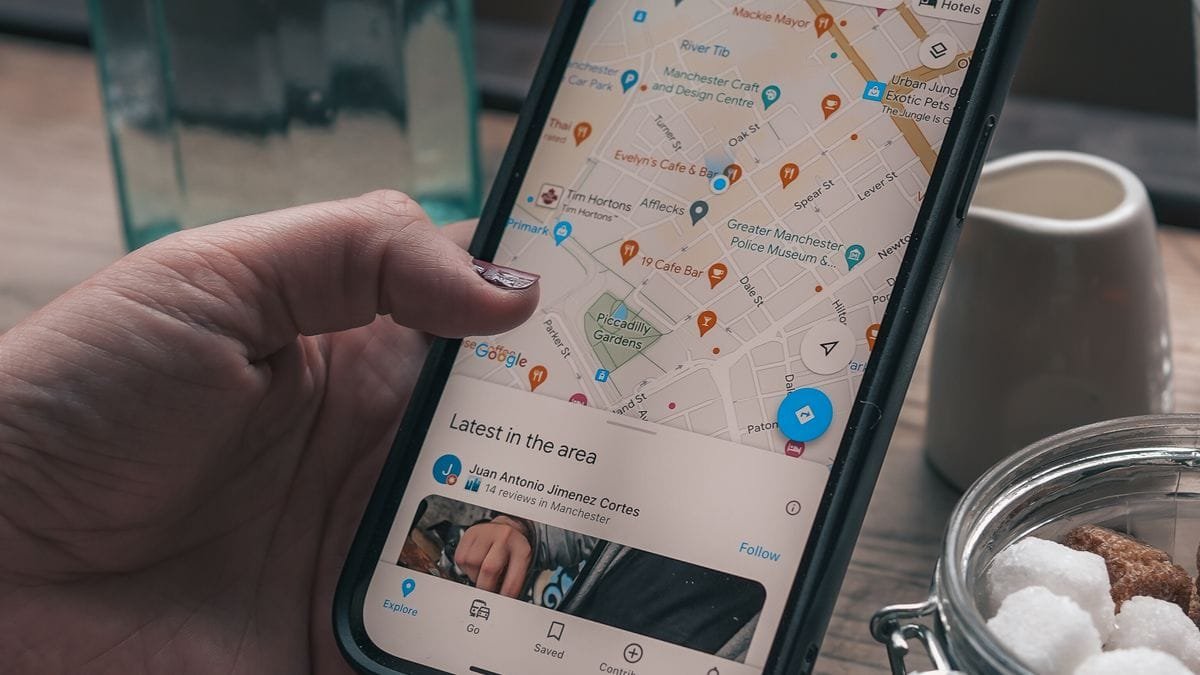
Someone searches for your business, taps Directions and follows Google Maps. Instead of reaching your door, they arrive outside a neighbouring shop, behind your building or at the address you left months ago. You may never hear from the people who give up.
If your Google Maps pin is in the wrong location, you can usually request a correction from your Google Business Profile. But changing the pin is not always the right fix. The written address may be wrong, the road information may be wrong, or the customer may simply be given a poor driving route.
What to do first: Open your business on Google Maps, check the written address, zoom in on the pin and test Directions. If the address is correct but the pin is misplaced, sign in to your Business Profile, go to Edit profile → Location → Business location → Edit → Adjust, move the map to position the pin correctly, then save. Google reviews the change, so it may not appear straight away.
1. Work out which location problem you actually have
These problems look similar to customers, but the fixes are different. Check on a phone as well as a computer. Search for your business name, then search for the street address on its own. Try Directions from a nearby road.
| What you see | Likely problem | Where to start |
|---|---|---|
| Your street address is right, but the pin is on the wrong building | Business map marker | Adjust the pin in your verified Business Profile. |
| The profile displays an old street or incorrect postcode | Business address | Correct the address in your Business Profile. |
| The marker is right, but the route ends at the rear gate | Directions, entrance or road data | Report the incorrect route or street entrance in Google Maps. |
| The correct business appears twice, at two addresses | Possible duplicate or old-location listing | Identify which listing is genuine before changing anything. |
| You visit customers but Google displays your home | Incorrect service-area setup | Review whether your address should be hidden. |
| The pin keeps returning to the wrong place | Unresolved map data or competing information | Collect evidence, check edit status and review your published address details. |
Do not change the business name, category and address together in an attempt to make the pin move. These settings describe different things. Extra changes can make it harder to see which correction solved the problem.
2. How to move your business pin on Google Maps
These are the steps for a verified business that customers can visit at its stated address, such as a shop, clinic, salon, restaurant or trade counter.
- Sign in to the correct Google account. Use the account that manages your Google Business Profile. Search for your business name in Google Search or open the profile management view.
- Choose Edit profile. Open Location.
- Find Business location. Select the edit pencil next to the business location.
- Check the address before moving anything. Make sure the building number, street, town, unit and postcode describe your genuine location.
- Select Adjust. Move the map until the pin marks your actual business location. The option may be particularly important where Google cannot match a street number to the correct building.
- Save the change. Choose Done and then Save.
- Record what you submitted. Take a screenshot of the correct map position, the written address and the date you made the change.
- Check the public result later. Search as an ordinary customer and test Directions again after Google has reviewed the edit.
This is the method in Google’s official instructions for editing a business address and pin. The wording of buttons can vary slightly between desktop, Android and iPhone.
Where should the pin go? Put it on the real premises, not a nearby busy road, landmark or better-ranking part of town. If visitors enter through a clearly separate entrance, check the arrival point as well, but do not pretend your business occupies a building it does not use.
3. The address is correct, but Google shows the wrong building
This is common in shopping centres, business parks, converted buildings, industrial estates and streets where several premises share one postcode. A customer may see the correct written address and still be guided to a loading bay or next door.
Start by confirming the exact building and unit. Compare the pin against the entrance, shop sign, building number and neighbouring businesses. Look at satellite imagery if it helps, but remember that an aerial photograph can be older than the current building layout.
For example, a beauty salon at Unit 3 in a small parade may share a postcode with five other shops. A pin in the middle of that postcode may be close in distance but wrong for anyone arriving on foot. The correct approach is to preserve the real address and request a more precise pin position, not invent a different street address.
If your business operates inside another business or shopping centre, Google may also show a location description. This is separate from your written address and is not always editable directly.
A useful check: Ask someone unfamiliar with the premises to open the public listing and tell you where they would walk. That reveals problems the owner may overlook.
4. What if Google Maps has the wrong street address?
Sometimes the problem sits in Google Maps’ address data rather than your Business Profile. The building number may be missing, a new development may not yet appear, or Google may place a genuine address on the wrong road.
Google provides a separate route for correcting this:
- Open Google Maps on a computer.
- Search for the affected street address.
- Select Suggest an edit, then Wrong pin location or address.
- Enter the correct address details and submit the change.
- Keep a record so you can check whether the map information changes.
See Google’s address and pin correction instructions for the current desktop method. If a road itself is missing or incorrectly drawn, that may require a road-data correction instead.
Important distinction: A public Maps address suggestion is not the same as an owner editing a verified Business Profile. It is also not a guaranteed shortcut to having a rejected Business Profile change accepted. Use the route that fits the actual error.
5. Directions are wrong even though the pin is correct
Do not repeatedly move a correct pin to compensate for a bad route. Customers can be sent towards a closed gate, a one-way street, the wrong car park or the rear of a site even when the business marker is accurate.
Try the directions from at least two starting points. Test driving and walking where they matter. A café with a pedestrian entrance and a delivery gate may need different arrival information from a warehouse with a visitor reception and separate goods entrance.
On a computer, Google explains how to report an incorrect step in Maps directions: enter the journey, open the route details and use the route-feedback option against the wrong instruction. Where supported, also report a missing or incorrect street entrance.
Meanwhile, help people reach you through your website. A short instruction such as “Customer entrance on the High Street; parking behind the building” can prevent an abandoned visit. Use the same detail in appointment confirmations when appropriate.
6. What if your business moved to a new address?
A genuine move is different from a pin that is a few metres out. If you have moved from one premises to another, the address on your business profile must reflect where you now operate.
Before editing, check whether the business remains the same business under the same name. In many genuine moves, the existing profile should be updated rather than replaced with a new listing. Creating another profile without checking can leave two results competing for attention and confuse customers.
Update the real address, review the map pin, and be prepared for Google to request further verification. Keep signs, recent business documents, website details and customer-facing contact information consistent with the new premises. Where the old address is still publicly shown elsewhere, correct those details too.
If Google already shows two listings for the same business, follow a careful duplicate Google Business Profile correction process instead of removing a profile at random. Deleting the wrong listing is not a sensible way to test whether your pin improves.
For a business that has relocated across town, tell existing customers about the change directly as well. A map edit will not inform every person who saved your previous address.
7. You do not have access to the Business Profile
If a former marketing agency, employee or previous business partner still controls the account, avoid creating another profile simply to regain an edit button. First find out who owns the existing listing and whether you are already a manager.
Google has a formal ownership-request route for genuine business representatives. This helps avoid accidentally starting a duplicate profile while the original remains live. The practical steps and what to do if an old agency does not respond are covered in recovering Google Business Profile ownership.
Where you cannot edit a listing you do not manage, a relevant public Maps correction may still be possible. It is not a substitute for securing proper business ownership, which you will need for ongoing profile management.
8. Special rules for plumbers, locksmiths and other mobile businesses
Not every business should display a map pin at a customer-facing address. If you travel to customers and do not receive them at your home or office, Google generally expects you to hide the address and show your real service areas instead.
A mobile locksmith operating from home in Croydon should not add a public shopfront pin on a central London street just because that location looks commercially attractive. Likewise, a domestic plumber should not advertise a virtual office as a staffed workshop when customers cannot visit it.
Google says service-area businesses can specify areas such as towns and postcodes and should keep their coverage realistic. The limit is normally around two hours’ driving time from their base, with some business-specific exceptions. Adding a huge list of distant areas does not turn those places into separate physical premises.
Review the distinction between a hidden-address service business and a staffed storefront in the Google Business Profile setup for service-area businesses. If the issue is a strange-looking approximate map position on a hidden-address listing, check the underlying eligibility and service-area settings first rather than trying to expose your home address.
Google’s business representation guidelines explain the difference between real storefronts, hybrid businesses and services that visit customers.
9. Your pin edit is pending, rejected or keeps changing back
Google does not automatically approve every location change. Its review system may need to confirm that your proposed address is accurate. Google’s stated timing for Business Profile edits is usually around ten minutes, but some changes can take up to 30 days. That is a possible review period, not a promise of approval.
| Status or symptom | What it means | Practical next step |
|---|---|---|
| Accepted | The submitted information has been accepted. | Check the public pin and test the route from another device. |
| Pending | Google is still checking the edit. | Allow the review process to run and keep evidence ready. |
| Not approved | Google could not confirm the change. | Check the address and evidence; use an appeal or support route if offered. |
| Pin returns to old spot | The underlying address or map data may still conflict. | Review the old address sources and record the reversal before escalating. |
Google’s explanation of Business Profile edit statuses sets out these distinctions. Do not assume the edit failed merely because a public map has not updated within a few minutes.
If the correction is not approved, avoid making repeated random changes. First compare the recorded address, exact unit number, website details and photograph of your premises. If a formal appeal route is available, use it with clear evidence. An edit stuck under review should be treated differently from one explicitly rejected.
For troubleshooting beyond the pin itself, including rejected location, category and service edits, focus on the specific evidence Google needs. Our Business Profile edits pending or rejected checklist separates common causes rather than treating every edit as the same fault.
10. What evidence helps explain where your business really is?
There is no magic document that guarantees Google will move a marker. Good evidence simply makes the real-world position clearer. Gather relevant details before contacting support rather than sending a long, unfocused message.
- Permanent signage: A clear image showing the business name on the actual entrance or premises, where applicable.
- Building and unit number: The number or unit reference that matches the real address.
- Street context: A photograph that helps identify the entrance and neighbouring premises without showing private customer information.
- Consistent address: The address shown on the business website and customer-facing documents.
- Before-and-after map screenshots: The misplaced pin, the correct building and the route that causes confusion.
- Business move records: If the business genuinely relocated, suitable evidence of the new premises, if Google asks for it.
Keep private details out of public Maps suggestions. Do not publish a tenancy agreement, customer address or identity document on a public review or image. Use an official, secure support or verification process when sensitive evidence is requested.
11. Check the website and other business details after the correction
Many owners fix Google Maps but forget that their own website still shows the previous premises. This leaves customers confused even when the pin is right.
- Contact page: Display the actual customer-facing address and unit details where appropriate.
- Directions link: Open it from a phone. Make sure it points to the correct public listing and route.
- Embedded map: Check that a map widget or iframe is not still centred on the old address.
- Appointment messages: Update booking confirmations, visit reminders and “find us” emails.
- Major directories: Correct obvious old-address listings rather than creating another set of conflicting entries.
- Accessibility information: Add a short, accurate entrance or parking note when the route is difficult.
This is part of practical local SEO support for UK businesses: customers should see the same reliable location information on Google, on the website and when arranging a visit. Consistency is useful because it reduces confusion. It does not mean that every address edit will immediately move the business higher in Maps results.
12. How to check whether the correction really worked
Do not stop at “Google accepted the change”. A pin can move to the correct building while navigation still leads to the wrong entrance. Test the entire customer journey.
- Search for the exact business name in Google Search and Google Maps.
- Confirm the visible address and pin match the premises.
- Ask a colleague to tap Directions on a different phone.
- Test routes from two realistic starting points.
- Check the website’s address, map and contact details.
- Monitor customer questions such as “Where is your shop?” or “Is the entrance at the rear?”
- Track whether calls, bookings and visits improve over the following weeks without assuming the map fix caused every change.
If you have Google Business Profile performance data, you can compare direction requests and calls before and after. These figures show customer actions, not confirmed visits or sales. A short record of customer feedback is often more useful than a single number on a dashboard.
Examples: three different UK location problems
A salon in a shopping parade
A salon has the right road and postcode, but its marker lands on the takeaway next door. The owner should verify the unit number and business entrance, then adjust the pin from the existing verified listing. Creating a second listing would introduce an unnecessary problem.
A clinic with the correct building but a poor route
The clinic’s pin is in the right place. Driving directions, however, lead patients to a locked delivery gate. The clinic should report the incorrect route or entrance information in Maps and add clear arrival notes to appointment confirmations. Moving the business to the middle of the main road is not the fix.
A locksmith who works from home
A locksmith only visits customers and never receives them at home. Their first priority is to check that the address is hidden and the service area is truthful. Publishing a visible home pin just to look more local could put the profile at odds with Google’s guidelines.
These are illustrative examples, not reports about named businesses.
Frequently asked questions
Can I move my Google Maps pin without changing my street address?
Yes, where Google provides the pin-adjustment option for a genuine staffed location. Check the written address first, then adjust the position on the map so it marks the correct premises. The two settings serve different purposes.
Why is my pin wrong when my postcode is correct?
A postcode can cover several premises. A shared building, unit or entrance may need a more precise position than the address text alone provides. Check both the unit details and the marker before requesting a correction.
How long does Google take to move a business pin?
Google says Business Profile changes usually appear within about ten minutes, although some edits can take up to 30 days. The result depends on review and verification; you should not treat the shorter period as guaranteed.
Will moving my pin improve my Google Maps ranking?
A truthful location correction can help customers find the right premises. It does not guarantee higher rankings, more calls or a particular place in Google Maps. Accuracy comes first.
Should I delete my old profile and start again?
Not simply because the pin is wrong. First check whether you have an address error, an ownership problem, a business move or an actual duplicate listing. Replacing a valid profile can create fresh problems for customers and your business history.
Can a service-area business choose a city-centre map pin?
No. A business that visits customers should describe its genuine operating base and service area in line with Google’s rules. Selecting a desirable pin that is not a real staffed location is not a valid local SEO tactic.
Before you finish: a simple location-fix checklist
- Check the business name, written address and pin separately.
- Test the actual route, including the customer entrance.
- Correct only the information that is genuinely wrong.
- Use the verified Business Profile for owner-managed edits.
- Use public Maps corrections for underlying map or address errors where appropriate.
- Follow the correct service-area rules if customers do not visit your address.
- Keep screenshots and evidence if an edit is delayed or rejected.
- Update your website and customer directions once the correction is accepted.
A correct map marker is a small detail with a very practical purpose: helping the people who want to visit you reach the right door. If the pin, address, website and directions still disagree, Core Web UK can help identify which part needs correcting before further changes create more confusion.
