
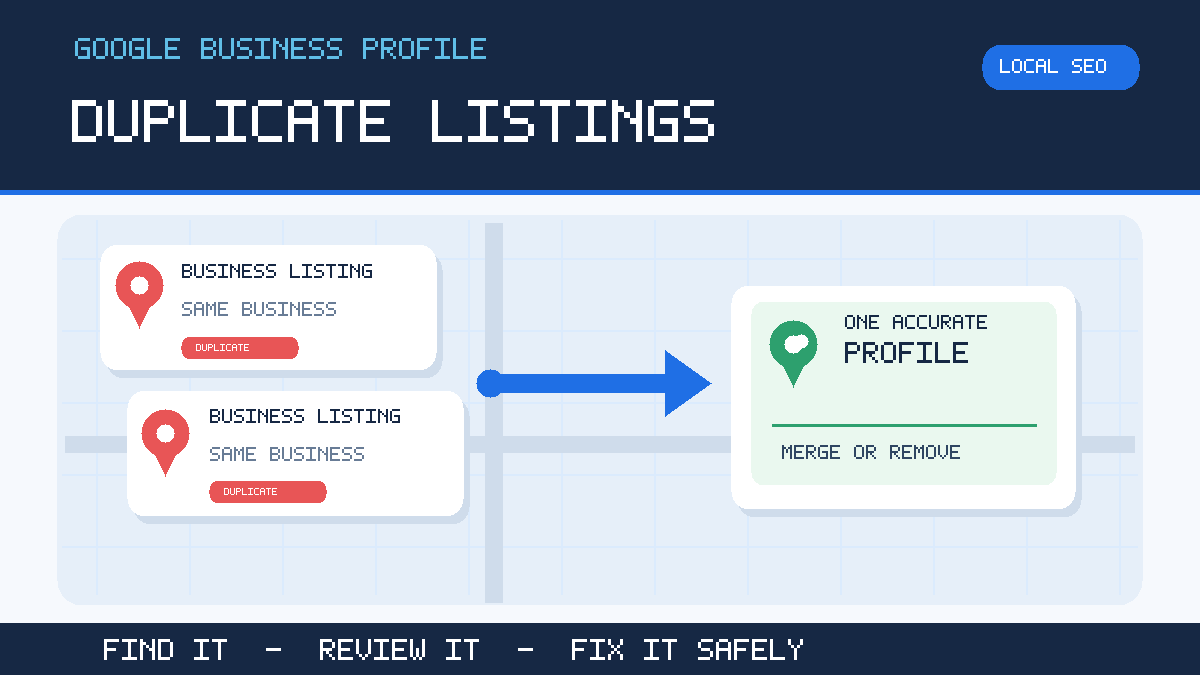
Have you found two Google Business Profiles for the same company? Perhaps an old address still appears in Google Maps, a former marketing agency created another listing, or Google has marked your genuine profile as a duplicate. It is tempting to delete one immediately. Don’t do that until you know which profile Google recognises and what will happen to its reviews.
A duplicate Google Business Profile is an extra listing that represents the same business, not a separate eligible branch. The right fix depends on who controls the profiles, whether both appear on Maps, and whether the business really operates from one location or several.
Google’s official Business Profile guidance says one business should normally have one profile. A profile marked as a duplicate may not appear on Search or Maps. To put things right, first compare the listings, then choose between requesting ownership, suggesting a merge, removing a duplicate you manage, or appealing a wrong classification. The sections below explain the differences in plain English.
What actually counts as a duplicate Google Business Profile?
Imagine you run a plumbing firm in South London. One Maps result shows your current mobile number and customer reviews. Another result has the same company name, an old address and a second phone number. If both represent the same trading business, you probably have a duplicate. You do not have two businesses simply because the phone number, address or spelling is different.
Common causes include an owner creating a replacement listing after losing access, an agency creating a second profile without checking, a business move, a name change, or a listing already present on Maps before verification. Sometimes an inaccurate listing is added by another source and later appears in search.
However, two profiles at the same building are not always duplicates. Separate eligible businesses with genuinely different names, activities and visible signage can have distinct profiles. A business with several real, staffed locations may also qualify for multiple profiles. What matters is the underlying business, not just the postcode.
If you are unfamiliar with ownership, verification and visibility, it helps to understand how a Google Business Profile works before changing anything.
Check these seven things before you remove anything
- Search Google Maps by your trading name. Check the exact spelling, common abbreviations and any previous business name.
- Search by your current and former addresses. Businesses that have moved often discover an older entry this way. For businesses without a public address, search the name and town instead.
- Open every likely result. Write down the Maps link, business name, address or service area, phone number, website, hours and category.
- Compare reviews and photographs. Identify where customers currently leave feedback. Note the rating and number of reviews on each listing.
- Check which Google account manages each profile. Sign in with your business-controlled account, then look in Business Profile Manager and the access settings.
- Identify the profile to keep. Usually this is the accurate, established, eligible profile with genuine history and proper ownership. Do not select it on review numbers alone.
- Save evidence. Take screenshots, record the profile links and note who can access them. Keep this information before requesting a change.
Stop if the entries may represent two genuinely separate businesses. It is safer to establish eligibility first than to ask Google to merge two businesses that should remain independent.
Record both profiles before choosing a fix
Use one private case record with a separate entry for each listing: public Maps link, current visibility, business details, verification status, authorised owners, review count and important owner replies. Note which record accurately represents the trading business and why. A single entry in your management account does not prove there is only one public listing.
Use the duplicate reason, not a false closure
Google’s current desktop Maps instructions use Suggest an edit → Place closed or not here → Duplicate of another place → Submit. Wording may vary by device. Choose the duplicate reason only when the records represent the same business; do not report a trading business as permanently closed or non-existent to force a merge.
See Google’s duplicate profile and merge guidance and Maps duplicate-report instructions. Google reviews the request. Removing account content is a separate, permanent action, not confirmation that the public duplicate has disappeared.
What should a duplicate-profile audit deliver?
Ask for a comparison of both listings, the proposed profile to retain, the eligibility reasoning, the review and reply risks, and the exact request proposed for your approval. Keep any case reference and a dated record of public results afterwards. Completion means checking the correct phone number, website, location and customer history on the intended profile; submitting a form alone does not establish that Google has completed the change.
Should you merge, remove, claim or appeal?
There is no single button that resolves every duplicate. Use the situation below to choose the least risky next action.
| What you found | Usually the right action | What to protect |
|---|---|---|
| Two visible Maps listings for the same business | Suggest a merge in Google Maps; Google reviews the request. | Both listing links, reviews, replies and existing access. |
| You created a second profile by mistake | Check the correct primary profile, then remove the unwanted profile from your account where appropriate. | Photos, posts, managers and other content on the profile being removed. |
| The existing listing belongs to a previous agency or owner | Request ownership of the existing listing rather than making a third profile. | Account access and evidence you are authorised to represent the business. |
| Google has labelled two different businesses as duplicates | Appeal the duplicate classification with evidence that they are separate and eligible. | Business documents and permanent signs showing the distinction. |
| Your business moved premises | Update the existing eligible profile with the new address; do not automatically create a replacement. | Profile history, customers’ directions and accurate contact details. |
Google’s help pages distinguish between removing a profile from an account and removing a place from Maps. They are not the same thing. Removing content and managers does not guarantee the listing itself will vanish from Google Maps.
How to fix two Google Business Profiles, step by step
1. You can see two live listings on Google Maps
If both Maps results represent exactly the same business, use Google Maps to suggest a merge of the duplicate with the correct listing. You may see the option through the listing’s Suggest an edit controls; interface wording can vary. Identify the correct existing profile and supply both Maps links if the process asks for them.
Google reviews merge requests. There is no guaranteed instant merge or fixed approval time. If you cannot find the right option, use Business Profile Help to contact support with the two links and an explanation that the listings represent the same business.
Before submitting, check that the two records refer to the same business and carry consistent, truthful details. Do not invent a different address or business name merely to force Google’s system to accept a merge.
2. You accidentally created a second profile yourself
If you manage both entries and one was created by mistake, first check which profile is already verified and visible. Google says you can remove an accidentally created duplicate without affecting the verified listing. But be very precise about which one you select.
In the unwanted profile, Google describes the removal route under Business Profile settings → Remove Business Profile → Remove profile content and managers. Only the primary owner can perform certain removals, and newly added owners can face a temporary waiting period.
Important: that account-removal action permanently removes owner-created content, including posts, photos, videos and replies, and removes managers. User reviews may remain attached to a public Maps listing. It is not a reliable way to erase an unwanted place from public search results. If both profiles have valuable customer reviews, investigate a merge before removing anything.
3. Someone else controls the original business listing
If the useful established profile belongs to an old agency, employee or Google account you cannot reach, recover access instead of creating a new profile. For a shopfront or hybrid business, Google’s ownership process begins by finding the existing business at business.google.com/add and choosing Request Access where offered.
According to Google’s current instructions, an existing owner has three days to respond to a formal ownership request. An approved request lets you manage the profile; a refusal can lead to an appeal route; and after no response you may be able to claim it. The claim option is not always available, so do not assume ownership is automatic.
For a service-area business without a public shopfront, Google directs owners to Business Profile support for ownership requests. This is especially relevant to mobile locksmiths, cleaners and other trades who visit customers rather than serving them at their business address.
Once access is recovered, use one business-controlled primary owner account, with trusted colleagues or agencies as additional users. Keep login records within the business rather than leaving sole control with a supplier.
4. Google says your legitimate business is a duplicate
Sometimes Google’s duplicate detection is wrong. Two separate firms might use the same commercial building, or independent businesses may operate from clearly identifiable premises inside a larger site.
Google permits separate eligible profiles when there is a genuine distinction. You may need evidence of different business names, actual customer-facing operations and permanent signage. Use the official duplicate-status appeal route rather than repeatedly recreating the missing profile. An appeal is for genuinely distinct businesses, not two versions of one operation.
If the profile disappeared for another reason, first check whether it is unverified, suspended, restricted or simply not appearing for a particular search. Those problems have different remedies. A business profile missing from Google results is not proof of a duplicate by itself.
5. The second listing shows your old address
A move does not automatically make the former address a separate business. Google’s published guidance is clear: when a business relocates, update the existing profile’s address rather than starting a new profile simply because it moved.
Check whether the old Maps result is a duplicate, an out-of-date listing or an entirely different business that now occupies the old premises. Do not mark a trading business permanently closed just to make the duplicate problem go away. Incorrect closure labels can mislead customers and harm enquiries.
Keep the website’s contact details and relevant business citations in step with the correct location. If Google asks you to verify updated details, follow its requested process rather than trying to avoid verification by creating another profile.
6. You operate a business with a hidden address
A service-area company may not display its trading address publicly. That does not justify making separate profiles for each town, postcode or advertised service. One genuine service-area business generally uses one profile, unless it has separately eligible staffed locations.
If you find profiles for the same locksmith company under several nearby towns, check whether they were created to target locations rather than represent distinct eligible businesses. Google may treat those as duplicates. The safest setup begins with a truthful trading business and accurate coverage, as explained in service-area Business Profile settings.
Will your reviews be lost when Google merges profiles?
This is the main reason not to rush. Google’s official duplicate-profile guidance states that reviews are combined when eligible profiles are merged, but replies to reviews may be lost. That is different from simply deleting profile content and managers. Do not assume that deleting a duplicate will move its reviews to the other listing.
Before making a request, record the review totals, capture important review replies and keep the URLs of both listings. After Google confirms the change, check which profile appears publicly, whether the phone number and website are right, and whether the review count looks consistent. If something is missing, contact support with your original case and evidence.
A merge is a process controlled by Google, not a command you can force to produce a particular review number. Avoid agencies promising a guaranteed transfer or an exact date. Honest expectations are more useful than an unrealistic deadline.
When to use a different guide: If Google only fails to show your business for certain searches, that does not establish that a second listing exists. Use our missing Business Profile troubleshooting guide for visibility, suspension and verification checks. This article is specifically about identifying and resolving two records for the same business.
Can a duplicate Google Business Profile damage local rankings?
It can create problems for customers and visibility, but there is no reliable rule that removing one duplicate will automatically add a set number of Google Maps ranking positions.
The practical risks are easier to explain: a customer may call an outdated number, leave a review on the wrong profile or navigate to your previous premises. One version of the business may appear while the correct one does not. When you are investigating poor Maps performance, inconsistent profile details deserve attention.
Google describes relevance, distance and prominence as central factors in local results. Cleaning up duplicates supports an accurate business identity, but it does not remove the need for suitable categories, genuine reviews and a useful website. Treat any ranking changes as something to measure, not something to promise.
Check the practical results after the fix: customer calls, direction requests where relevant, website clicks and whether the intended profile appears for your branded search. Search results also vary by location, so compare like with like.
Six mistakes to avoid when fixing duplicate listings
- Deleting the wrong profile. The original account or most established listing is not always the one that looks newest in your dashboard. Compare them carefully.
- Creating another listing to escape a problem. A third profile can make identification and ownership more confusing.
- Marking a real business permanently closed. Only use closure information when it accurately describes the business.
- Expecting review migration from a simple removal. A review merge and removal of managers are different actions.
- Using fake addresses or extra towns. A virtual office, borrowed address or separate service keyword does not make an extra profile eligible.
- Changing several important details at once. If Google asks for verification or rejects an edit, keep evidence and resolve that process before making further unnecessary changes.
For genuine confirmation challenges, handle Google Business Profile verification problems separately. Attempting to solve every warning by making a fresh listing often creates more work.
How to stop duplicate profiles appearing again
Prevention is less complicated than cleanup. Keep a simple record of the Business Profile’s primary owner, management accounts, official trading name, website, business phone number and Maps link. Make this part of the handover checklist whenever you change marketing provider.
Check Google Maps after a move, rebrand, telephone-number change or website redesign. Search the old name and address as well as the new details. Also check major directories where old information could confuse customers.
Do not create a new profile when you add another service. A roofing company does not need one listing for repairs and another for gutter cleaning at the same premises. Update its real services and the relevant pages on the website instead.
For most small firms, a sensible occasional review is enough. There is no need to pay for an elaborate monitoring system before you have checked the basic ownership and accuracy questions.
Frequently asked questions
How long does it take Google to merge duplicate Business Profiles?
Google reviews merge requests, but there is no single reliable completion time for every case. Ownership disputes, conflicting data and eligibility questions can make it take longer. Keep your case reference and avoid sending repeated conflicting requests.
Can I have two Google Business Profiles at the same address?
Yes, where they represent two genuinely distinct and eligible businesses. Sharing a building is not itself a reason for removal. The businesses may need evidence such as distinct names and permanent signage.
Can I make a profile for every town I serve?
No. Serving many towns does not usually give one company the right to create a separate Business Profile for each town. Use an accurate service area and create useful website content that reflects genuine services, not artificial map locations.
Will removing a Business Profile delete it from Google Maps?
Not necessarily. Google’s removal guidance says deleting profile content and managers from your account does not guarantee the business disappears from Maps or Search. Choose a Maps correction or eligible merge when the public listing itself is the problem.
Should I create a new profile after moving premises?
Google advises moving the existing profile to the new address rather than creating a new listing solely for the relocation. If old and new entries already exist, establish which one is correct before requesting changes.
Does fixing duplicates guarantee better Google Maps rankings?
No. It can correct misleading details and prevent customers reaching the wrong profile, but performance still depends on the business, its location, competition, relevance and wider local visibility. Measure calls and enquiries, not just map positions.
When should you get help with a duplicate listing?
If you own both profiles and the wrong one is clearly empty, the problem may be straightforward. The risk is higher when reviews exist on both profiles, an old agency owns the original, Google has incorrectly merged two real companies, or your service-area business has several listings that were created over time.
Start with an evidence-based audit: identify the real business, compare the profiles, record access rights, and choose the correct Google process. If your visibility has been affected or you need someone to check the wider website and local search setup, Core Web UK provides local SEO support for Croydon businesses and nearby areas.
The safest rule is simple: protect the genuine profile and its customer history first. Then remove or merge only what really is a duplicate.
