
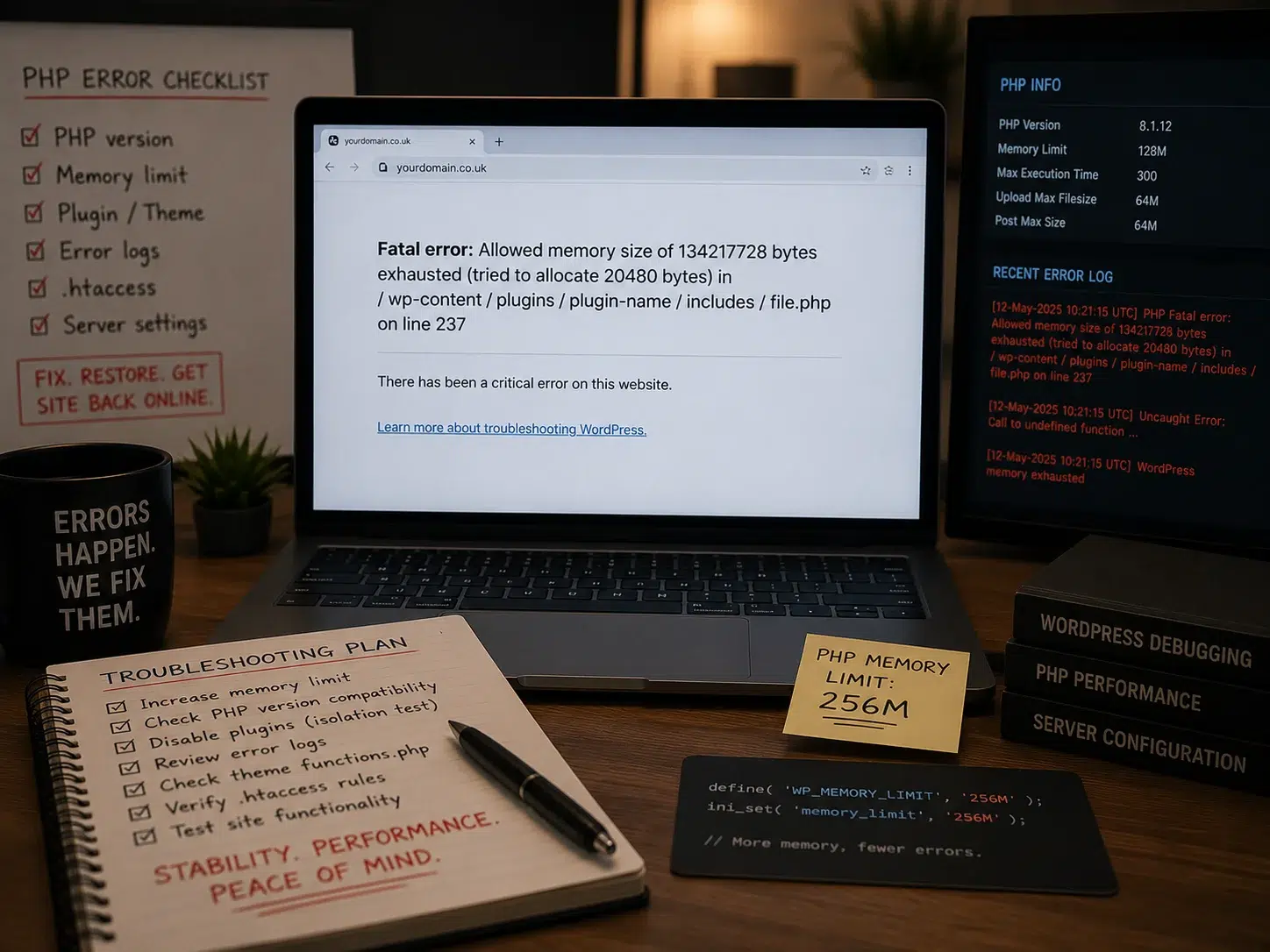
A WordPress 500 internal server error is frustrating because it tells you something failed on the server without telling you exactly what. The website may disappear, one page may fail while the rest works, or the error may appear immediately after an update, migration or configuration change.
A 500 error is a symptom, not the diagnosis.
Start with the server or PHP error log, then work backwards through the most recent change. Plugin conflicts, theme code, PHP errors, exhausted memory, damaged rewrite rules and server security rules are common causes. Do not make five changes at once.
What does a 500 internal server error mean?
A 500 response means the server could not complete the request because something unexpected happened on the server side. That is different from a 404, where the server is working but the page cannot be found.
WordPress itself may not be the root cause. The failure can come from PHP, a plugin, a theme, the web server, a firewall rule, memory exhaustion or a configuration file.
Suspect a plugin, theme, PHP or compatibility problem.
Check page-specific code, forms, builders and memory use.
Check logs, hosting, PHP and recent server changes first.
Look at memory, security rules and request limits.
1. Check what changed immediately before the error
The fastest clue is often the timeline. Did the error begin after updating WordPress, Elementor, WooCommerce, a security plugin or PHP? Did somebody edit .htaccess, move hosting, install custom code or change a caching/CDN setting?
If the site broke directly after an update, the process for updating WordPress safely is the right reference before another round of live changes.
2. Read the error log before guessing
A generic 500 page hides the useful detail. Your PHP or web-server error log may show the plugin file, function, memory limit or server rule that failed. This is normally much more useful than repeatedly refreshing the browser.
WordPress also has a built-in Recovery Mode for some fatal PHP errors, which can let an administrator sign in and isolate the faulty plugin or theme.
Screenshot the error and note what changed.
Check PHP/server error logs.
Test the most likely plugin/theme cause.
Restore or roll back only when needed.
3. Test for a plugin or theme conflict
If you can reach WordPress Admin, deactivate the plugin most closely connected with the timing of the failure. If the site becomes available again, you have a strong lead. If you need broader conflict testing, use a staging copy whenever possible instead of disabling every business-critical plugin on the live site.
WordPress documentation also lists incompatible plugins, themes and failed upgrades among common causes of fatal errors. See the official WordPress common-errors guidance.
4. Check PHP memory and version compatibility
A page builder, import, backup, large WooCommerce process or plugin update can exhaust the PHP memory available to WordPress. A 500 error may also appear when old code runs on a newer PHP version, or when a plugin expects a PHP feature that the server does not support.
Do not simply keep increasing memory without finding the cause. If one request suddenly needs dramatically more memory than before, investigate the plugin or operation creating the load.
5. Review rewrite rules and server security
A malformed .htaccess rule can generate a 500 error on Apache-based hosting. Server firewalls and security tools can also block legitimate requests, especially when a page builder sends a large request while publishing a complex page.
If the error only appears when saving an Elementor page, uploading a file or sending a form, that pattern is useful. It may point to a request limit, security rule or server configuration rather than a broken public page.
When should you restore a backup?
A restore is useful when you have a known-good backup and the problem began after a clearly identified change. It is less useful when the root cause is unknown, because restoring the same vulnerable plugin or server configuration can bring the error straight back.
For a busy WooCommerce or booking site, a full database restore may also overwrite new orders, bookings or enquiries. That is why recovery should be deliberate rather than automatic.
- Update every plugin at once while the site is already failing.
- Delete files you do not recognise without a backup.
- Restore an old WooCommerce database without checking what recent data will be lost.
- Keep editing server rules blindly until the site loads.
How Core Web UK approaches a WordPress 500 error
We start with evidence: the error, timing, logs, hosting environment and recent changes. The goal is to identify the failing layer before making the smallest sensible change.
If your website is currently returning a 500 error and generating enquiries, bookings or sales, our emergency website fixes service is designed for urgent faults. Once the site is stable again, ongoing monitoring, updates and backup checks sit under website maintenance and support.
FAQ
Can a plugin cause a WordPress 500 error?
Yes. A plugin can trigger a fatal PHP error, conflict with another plugin, exhaust memory or run code that is incompatible with the current PHP or WordPress version.
Can a 500 error fix itself?
A temporary hosting fault can disappear, but a repeatable 500 error should be investigated. If it returns after updates, form submissions or specific actions, there is usually an underlying cause worth fixing.
Is a 500 error bad for SEO?
A brief outage is normally recoverable. Persistent 500 responses stop users and search engines accessing the affected URLs, so prolonged or repeated failures should be resolved quickly.
Start with the server log, not .htaccess
Current WordPress 500-error guides increasingly put the error log first because a 500 response is generic. The log can immediately reveal a PHP fatal error, exhausted memory, permission problem or failing plugin file.
Only move to broader tests such as resetting rewrite rules when the log does not already identify the failure.
Match the 500 error to the request that triggers it
A whole-site 500, an admin-only 500 and a 500 that happens only when saving a page are different clues.
- Whole site: look at PHP, server configuration, plugins/themes and recent infrastructure changes.
- One URL: inspect page-specific code, query load and template logic.
- Save/upload action: inspect WAF/ModSecurity, memory and request-size limits.
- After update: compare the exact changed component and PHP compatibility.
Reset .htaccess only on servers that actually use it
Apache commonly uses .htaccess; Nginx does not use it in the same way. Do not follow an Apache-specific fix blindly on a different server stack. Confirm the hosting environment first.
Recovery Mode and troubleshooting mode can reduce live-site risk
When WordPress Admin is still reachable, Recovery Mode or controlled troubleshooting can isolate a bad plugin or theme without immediately disabling the entire live stack for every visitor.
