
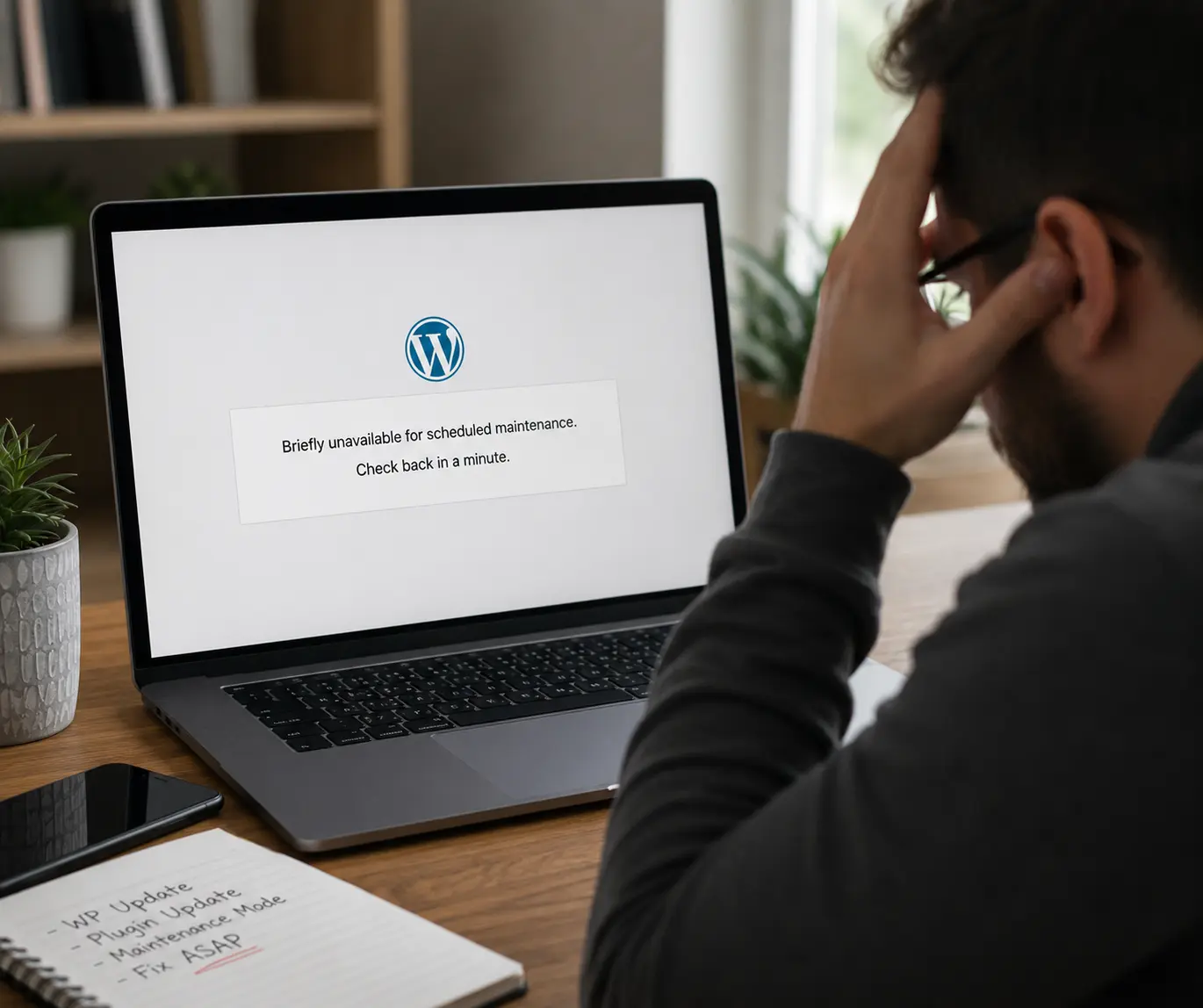

If WordPress is stuck in maintenance mode, visitors may see a message saying the site is briefly unavailable while scheduled maintenance is being carried out. Normally that screen disappears automatically. When it does not, the update process was usually interrupted before WordPress could clean up after itself.
Do not keep refreshing and retrying updates.
Confirm whether an update is still running, take a backup if possible, then remove the maintenance lock only when you are sure the process has stopped. After the site returns, check which update failed and test the front end, forms and admin area.
Why WordPress enters maintenance mode
During core, plugin and theme updates, WordPress temporarily creates a maintenance state so visitors do not see files changing halfway through a request. On a normal update the state lasts only a short time.
If the browser is closed, the server times out, PHP hits a limit or the update process fails, the temporary maintenance file can be left behind. WordPress then continues showing the maintenance message even though no update is running.
The process did not reach its cleanup step.
The update may have been interrupted mid-process.
Memory, execution time or disk space can interrupt updates.
The update itself may have failed.
How long should maintenance mode last?
Usually only for the duration of the update. A large plugin or slow server may take longer, but if the message remains after the update should reasonably have finished, treat it as a failed or incomplete process rather than waiting indefinitely.
Step 1: confirm the update is not still running
Check WordPress Admin in another tab, your hosting activity, and any update notifications. If a managed host is still processing an update, deleting the maintenance file too early can expose the site while files are incomplete.
Step 2: check whether you have a current backup
Before making server-level changes, make sure you have a recoverable backup if the hosting platform allows it. If the site handles orders or bookings, note the time of the backup so you know what data could be lost if a restore becomes necessary.
Step 3: remove the maintenance lock only after the process has stopped
On a standard WordPress installation, a failed update can leave a hidden .maintenance file in the WordPress root directory. Once you have confirmed no update is still running, removing that stale file can allow WordPress to load normally again.
If you are not comfortable using a hosting file manager or SFTP, ask your host or developer to do this. Do not delete random files in the WordPress root folder.
Look for failed or incomplete updates.
Open key layouts on desktop and mobile.
Send a real test enquiry.
If relevant, run the customer journey.
What if the site is still broken after maintenance mode is removed?
That is a different problem. The stale maintenance file may only have hidden the fact that a plugin, theme or WordPress update failed. Look for missing plugin files, fatal errors, incompatible versions or database-update notices.
If the issue started after an update, our guide on how to update WordPress safely explains why backups and staging matter before higher-risk changes.
Can you prevent WordPress getting stuck in maintenance mode?
You cannot eliminate every failed update, but you can reduce the risk. Keep enough free disk space, avoid running many large updates simultaneously, use a stable PHP version, maintain recoverable backups and test important updates on staging.
For WooCommerce, booking systems and lead-generation sites, the real goal is not simply to avoid the maintenance screen. It is to make sure the update process does not interrupt the customer journey.
Use our emergency website fixes service. If you want updates, backups and monitoring handled routinely, see our website maintenance and support plans.
FAQ
Does maintenance mode mean the site has been hacked?
No. It is normally part of WordPress’ update process. A site that remains stuck should still be checked, but the maintenance message itself is not evidence of a security breach.
Will deleting the .maintenance file damage WordPress?
If the update process has finished or failed and the file is simply stale, removing it is the normal way to release the maintenance state. Do not remove it while a legitimate update is still running.
Why does this happen repeatedly?
Repeated failures can point to server limits, slow hosting, compatibility problems, insufficient disk space or an update workflow that is too aggressive for the site.