
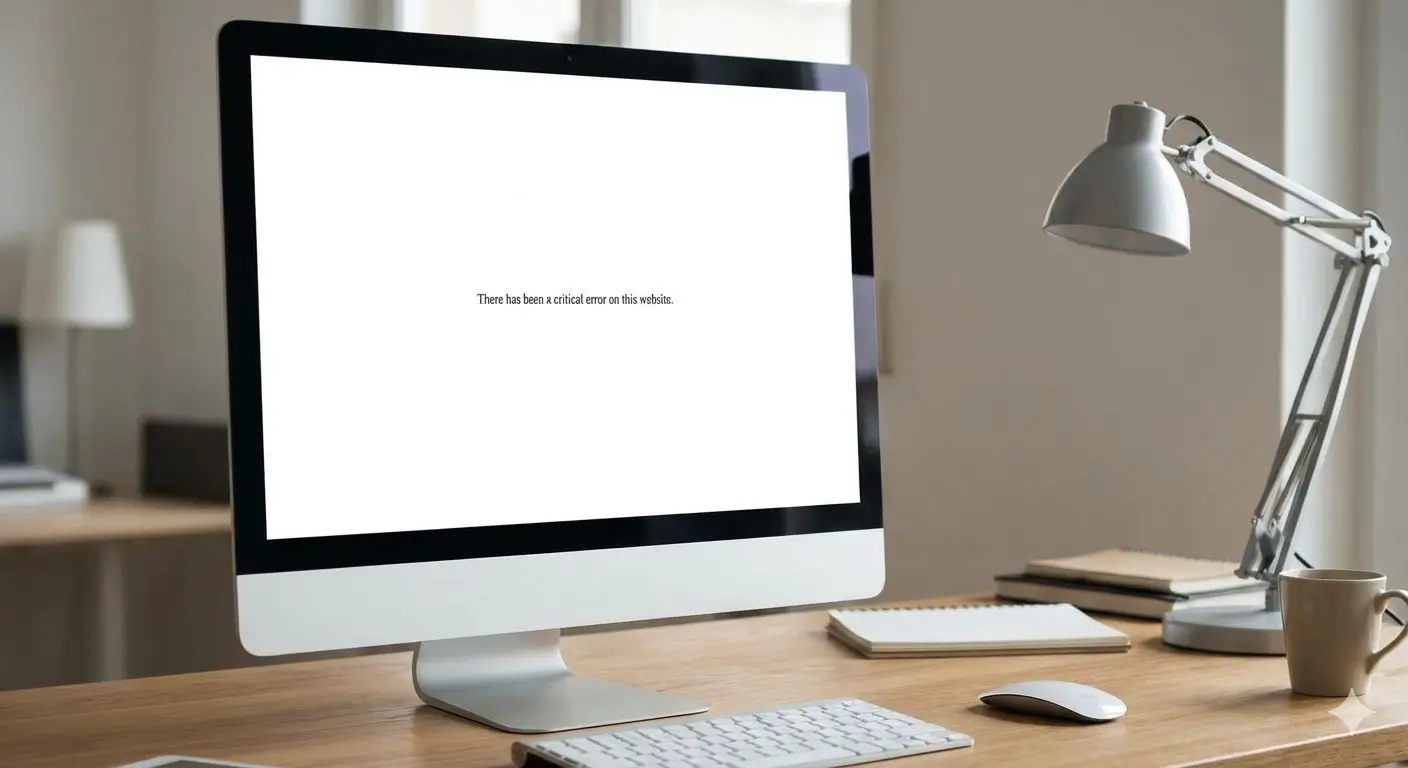
A completely blank WordPress page is often called the White Screen of Death. It can affect the whole site, one page, WordPress Admin or only a specific action. The blank screen itself tells you very little, so recovery should start with evidence rather than random plugin changes.
A white screen usually means PHP failed before WordPress could render an error page.
Check Recovery Mode, PHP/server logs and the most recent plugin, theme or code change. If only one page fails, investigate page-specific code or a builder/widget problem before disabling the whole site.
Common causes of a WordPress white screen
Plugin, theme or custom code crashes.
The request runs out of available PHP memory.
A new version is incompatible with another component.
One template or code path fails during rendering.
1. Check whether WordPress sent a Recovery Mode email
WordPress can detect some fatal PHP errors and send the site administrator a Recovery Mode link. That lets you sign in in a reduced state and identify the plugin or theme involved.
The official WordPress Recovery Mode guide explains how the feature works and what to do if the recovery email does not arrive.
2. Read the PHP error log
A white page often hides the actual exception. Check the PHP/server log at the exact time the page failed. A file path and function name can turn a vague blank screen into a specific plugin or theme problem.
3. Work from the most recent change
Did the blank screen begin after updating a plugin, changing PHP, editing functions.php, adding custom code or publishing a complex page? That timing matters. Undo or isolate the change on staging where possible.
4. Test whether the failure is site-wide
Open several front-end URLs, WordPress Admin, the login page and a static file or image. If only one page fails, a global plugin shutdown is probably too broad. If the entire site and admin fail, the root cause is more likely to be global.
Template/widget/content path.
Backend plugin or resource issue.
Global PHP/theme/plugin problem.
Check changed versions first.
5. Check memory, but do not stop there
If the logs show memory exhaustion, increasing the PHP memory limit may restore access. But if one plugin suddenly consumes far more memory than before, investigate that plugin or operation instead of treating a higher limit as the final fix.
6. Use controlled plugin or theme testing
If the evidence points to a plugin conflict, disable only the likely cause first. If the dashboard is unavailable, a developer or host can rename the plugin directory via file manager or SFTP to test safely. Preserve a backup before server-level changes.
Our WordPress update recovery guide covers rollback and restore decisions in more detail.
What should you test after the site returns?
- Key pages on mobile and desktop
- WordPress Admin and page editing
- Contact forms
- Login/account functions
- WooCommerce basket, checkout and payment if applicable
- Emails, scheduled jobs and integrations
The error is usually still in the logs. Recovering safely is about finding the failing layer, not guessing until the page reappears.
Need the site back online now?
Use our emergency website fixes service if a live WordPress site is blank or inaccessible. For preventative updates, backups and monitoring, see website maintenance and support.
Use WordPress Recovery Mode before editing files blindly
Modern WordPress can detect some fatal PHP errors and send an administrator a special Recovery Mode link. That lets you log in with the failing plugin or theme paused for your session so you can investigate without immediately resorting to FTP or deleting files. If the recovery email never arrives, server logs and a controlled plugin/theme isolation test become more important.
Check PHP fatal errors, theme rendering and recent updates.
Use Recovery Mode, hosting tools or file-level access to isolate the fault.
Investigate the template, shortcode, builder widget or code used on that page.
Compare the update time with the fatal-error log before rolling anything back.
Log the error without exposing it to visitors
For a live business site, detailed PHP errors should not be printed publicly. Log them instead, then inspect the fatal error, file path and line number. The error often gives a much faster route to the responsible plugin, theme or custom code than disabling random components.
WordPress documents Recovery Mode as a built-in way to regain access after detected fatal PHP errors.
White screen symptoms that narrow the diagnosis
Current search results distinguish between a blank frontend, blank WordPress Admin, a critical-error message and a 500 response. The scope matters because it tells you whether to investigate a page/template path, an admin-only hook or a site-wide PHP failure.
Recovery Mode should be checked first
WordPress can detect some fatal PHP errors and send the administrator a Recovery Mode link. If that email exists, it can identify the plugin or theme involved without first disabling the whole site.
WP_DEBUG and server logs
If Recovery Mode does not identify the fault, enable debugging carefully or use the host’s PHP error log. The file path in a fatal error often names the plugin, theme or custom code responsible.
Blank page after an update
Compare the exact update timestamp with the failure. Rollback or restore should be evidence-led: a backup can bring the site back, but it does not explain why the new version failed.
One page white, rest of site normal
Prioritise template code, page-builder widgets, shortcodes and page-specific queries before globally disabling plugins.
Competitor gap: recovery is not finished when the page reappears
After access returns, test forms, checkout, login, scheduled tasks and editing. A site can render again while the underlying integration or admin function remains broken.
FAQ
Is the white screen always a plugin conflict?
No. Themes, custom code, PHP compatibility and memory exhaustion can all cause it.
Can I fix it by increasing memory?
Only if memory exhaustion is the cause. Check the error log first.
Should I restore a backup immediately?
Only when you understand what data will be lost and why the site failed. A restore without root-cause analysis can bring the same problem back.
What should you check after recovering from a white screen?
Once the site loads again, make sure the underlying cause is actually fixed. A temporary recovery can hide a plugin, theme or PHP problem that may return.
Test both the public website and WordPress Admin before closing the issue.
- Review the error log.
- Check the plugin or theme that failed.
- Test forms and key pages.
- Keep a known-good backup.
