
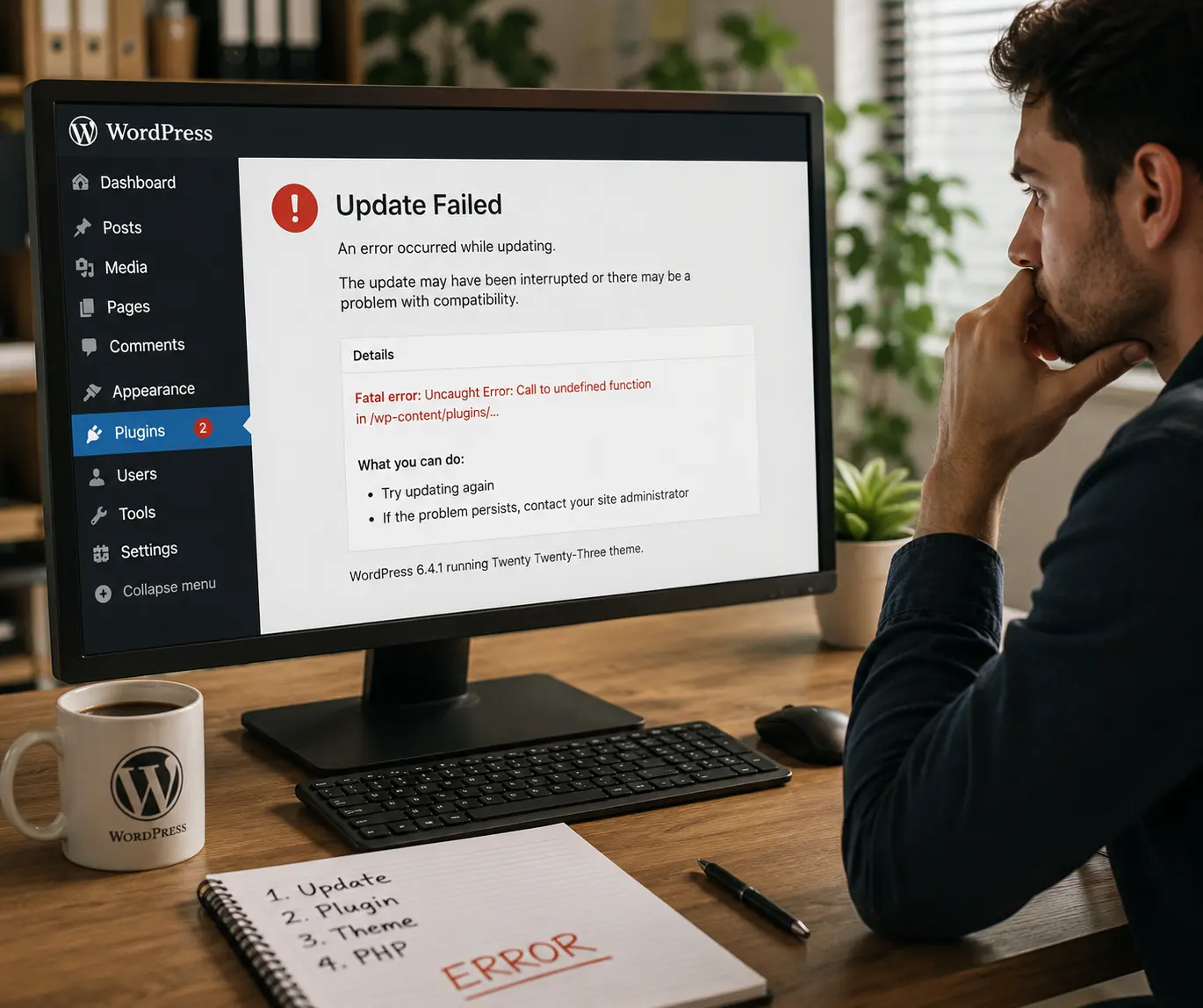
A WordPress update can finish without showing an obvious error and still leave part of the website broken. A page may lose its layout, a plugin can disappear, checkout fields can stop responding, or the whole site can show a white screen or fatal error.
The update is the trigger. The conflict is usually the cause.
Start with what changed, then isolate the failing layer. Do not immediately update everything else or restore a random backup.
Why a WordPress site can break after an update
WordPress websites are built from several moving parts: WordPress core, the active theme, plugins, PHP, server software and sometimes a page builder such as Elementor or ecommerce platform. An update changes one of those parts. If another part expects the old behaviour, the site can fail.
Two extensions no longer work together.
Templates or custom code rely on changed behaviour.
Old code fails on the current server runtime.
Old CSS, JS or object cache conflicts with new files.
First: identify exactly what broke
Do not treat every post-update problem as the same fault. Is the whole site down, only WordPress Admin affected, one Elementor page broken, checkout failing, forms not sending, or styling missing? If the editor still opens but Elementor will not save, publish or update the page, use our Elementor publishing and save-error guide.
The narrower the symptom, the faster the diagnosis. Write down the update time and the versions that changed.
Clear caches before changing code
After an Elementor, theme or optimisation update, stale browser, page, object, CDN or server caches can make the site look broken even when the files are correct. Start with the affected page and relevant browser, page-cache or generated CSS layer. Ask the host or developer before flushing a shared object cache. Then test the clean public URL while logged out; a private window alone does not bypass hosting or CDN caches.
Elementor’s own troubleshooting guidance recommends clearing browser, WordPress and server-side caches when unexplained issues appear after an update.
Check the error log and WordPress Recovery Mode
If the site shows a critical error, blank page or 500 response, read the PHP/server error log. It may identify the exact plugin or theme file that failed. WordPress Recovery Mode can also help administrators regain access after some fatal PHP errors.
Use conflict testing carefully
If you can reproduce the issue on staging, test the suspected plugin or theme there. Elementor recommends Safe Mode and controlled plugin testing for post-update problems. On a live ecommerce or booking site, disabling a stack of plugins can create more business disruption than the original problem.
Stop further updates.
Logs, symptoms, recent changes.
Plugin, theme, cache or server.
Roll back or patch deliberately.
When should you roll back?
A rollback can be appropriate when one specific update clearly caused the fault and a known-good previous version is available. But a rollback is not a permanent strategy. If the previous version contains a security issue or is incompatible with future updates, the underlying problem still needs a proper fix.
When should you restore a backup?
Restore only when you understand the data impact. A brochure site is relatively straightforward. A WooCommerce store may have received orders since the backup was created. Restoring its database can erase legitimate customer activity.
What to test before declaring the site fixed
- Homepage and key landing pages on mobile and desktop
- Navigation, buttons and click-to-call links
- Contact forms and confirmation emails
- Login and account areas
- WooCommerce basket, checkout and payment flow
- Booking or membership functions
- Admin editing and publishing
A successful update message in WordPress does not prove the customer journey still works.
Our WordPress update guide explains when to update and what to test. For ongoing staged updates, backups and post-update checks, see website maintenance and support.
Need the site back now?
If an update has already taken your website offline or broken a business-critical function, use our emergency website fixes service. We focus on the failing layer first rather than making unrelated changes across the site.
FAQ
Should I update the remaining plugins to fix the conflict?
Not blindly. More updates introduce more variables. Identify the failing combination first.
Can clearing cache fix a broken WordPress update?
It can fix stale CSS, JavaScript or page-cache symptoms, but it will not repair a genuine PHP or compatibility error.
Is it safe to roll back a plugin?
It can be a short-term recovery step when the cause is known, but check security implications and test the site afterwards.
What should you do before trying more fixes?
If WordPress broke after an update, first note exactly what changed and what stopped working. Avoid changing several things at once because that makes the cause harder to find.
Use a recent backup or staging copy when possible so you can test safely. If the update leaves WordPress stuck in maintenance mode, clear that specific condition before making unrelated changes.
- Check the error message or logs.
- Look at the plugin, theme or PHP version that changed.
- Test one fix at a time.
- Confirm forms, checkout and key pages after recovery.
Choose the recovery route before changing files
Keep a copy of the current files and database, even when the website is broken. Record the last working time, update names and old/new versions, affected URL, exact error and whether new orders, enquiries or bookings arrived afterwards. Ask your host whether PHP, caching or server settings changed too; the trigger may be outside WordPress Admin.
If you can still sign in
Check the affected feature, update history and error logs first. Reproduce the fault on staging, then test the suspected change. If only layout or animations broke, inspect failed CSS/JavaScript requests and relevant cache settings before restoring the database. Do not reinstall Elementor or delete page content simply because styling is missing.
If the dashboard shows a critical error
WordPress may send the site administrator a private Recovery Mode link. If available, use it to enter a protected admin session and investigate the reported extension. Keep that link private. Recovery Mode does not mean the public website has been repaired. If no link arrives or it cannot open, ask the host for the relevant PHP error and access recovery; a missing email does not identify the cause.
If you must use the host’s File Manager or SFTP
Confirm the correct website installation and take a backup before renaming anything. Where the evidence points to one plugin, a developer can temporarily rename that plugin’s folder inside wp-content/plugins/ and test again. Record its original name and the effect. This is different from deleting the plugin or renaming the entire plugins directory, which can disable checkout, security and other essential functions. A file named in an error is a starting point for investigation, not proof that the named plugin is solely at fault.
For a maintenance message, first confirm that no update or deployment is still running. Only remove a stale core .maintenance file from the verified WordPress root when that condition is established. Removing it does not repair missing update files, and it does not turn off a maintenance page created by a separate plugin.
Protect customer activity before restoring
Compare the backup timestamp with the latest order, account, booking and form records. Ask whether a targeted file rollback is sufficient or whether database changes also need recovery. Do not restore an old production database or push a staging database over live customer activity without a reconciliation plan. An older plugin or PHP release may carry security or compatibility problems; agree a supported fix and retest the update rather than leaving an indefinite downgrade.
Ask for evidence that the repair worked
Agree the diagnostic fee or repair scope, backup time, access method, rollback decision and expected next update. After recovery, test anonymously on the clean public URL, then check the affected customer journey and its resulting record. A successful payment screen alone is insufficient if the order or booking was not recorded correctly. Review logs, caches and background tasks as appropriate before closing the incident.
Jetpack’s update-recovery guidance covers Recovery Mode, logs, maintenance files and rollback routes. Apply the route to your actual fault: broad plugin deactivation, public debug output and blanket restores should not be the first response to every symptom.
