
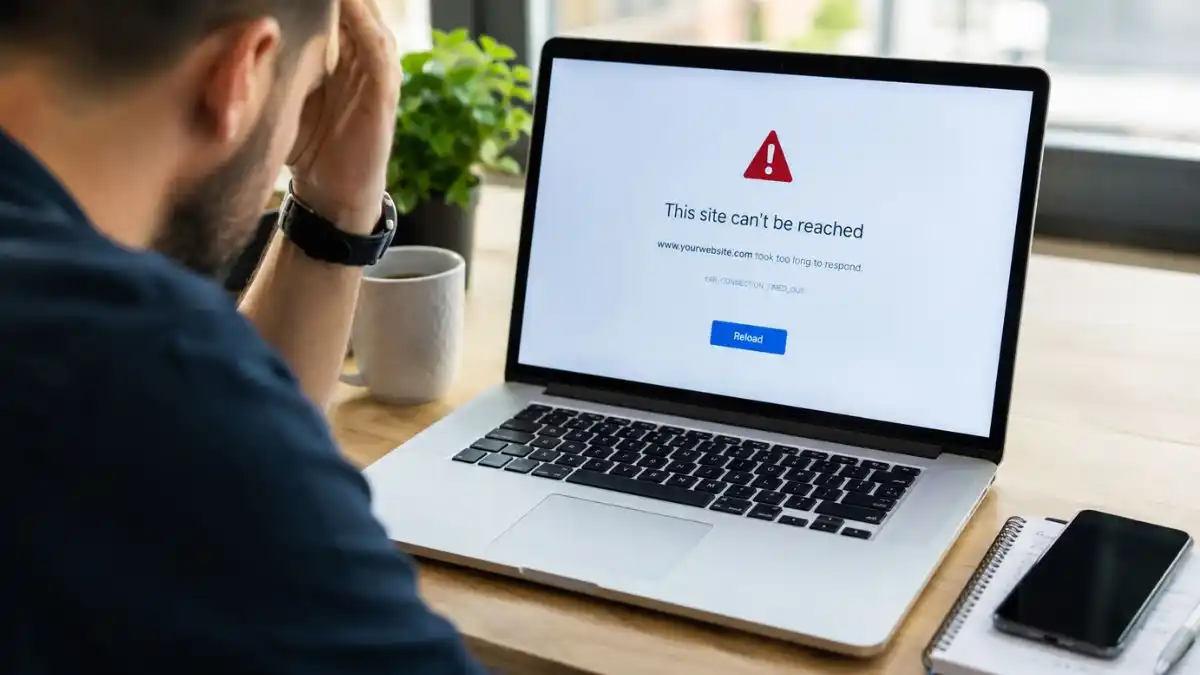
When the Elementor editor is not loading, the public website can look completely normal while the editing screen stays grey, shows an endless spinner, loads only the left panel or never opens at all. That usually means the problem is inside the editing environment — not necessarily the live page visitors can see.
Do not start by reinstalling Elementor.
First work out whether the fault is in your browser, cache, plugin stack, theme, Elementor versions or server resources. A controlled sequence is faster and much safer than changing several things at once.
Grey screen
Often points to a JavaScript conflict, plugin issue, browser extension or failed editor request.
Endless spinner
Common with cache mismatches, plugin conflicts or insufficient memory/resources.
Panel will not load
The canvas may appear while widgets stay blank because editor scripts fail to initialise.
Only one page fails
Think page complexity, one widget, embedded code or page-specific corruption.
What does “Elementor not loading” actually mean?
There is no single Elementor loading fault. Two sites can show almost the same grey screen for completely different reasons. That is why copying random fixes from forums can waste time or make a working live site worse.
1. Work out whether the problem is local or site-wide
Open two or three different Elementor pages. If only one page refuses to load, the fault is more likely to be page-specific. If every Elementor page fails, look at shared causes such as plugins, theme code, caching, server limits or an Elementor/Elementor Pro version mismatch.
This distinction matters because it stops you changing global settings for a problem that lives on one page.
2. Test a clean browser session before touching WordPress
Open the editor in a private or incognito window, then try a second supported desktop browser. Temporarily disable browser extensions that inject scripts into pages, including ad blockers, password tools, writing assistants and developer extensions.
If the editor loads there, you have narrowed the problem to the local browser environment without changing the website at all.
Elementor’s current system requirements state that editing is supported on desktop computers rather than mobile phones or tablets, and current supported browsers should be kept up to date.
3. Clear cache in the right order
A stale editor script can leave WordPress serving one version while the browser expects another. Clear the browser cache first, then any WordPress cache, host/server cache, object cache and CDN cache. If Cloudflare or another CDN is involved, purge that layer too.
Do not assume cache is the cause just because clearing it is easy. If the editor still fails immediately afterwards, move on rather than repeatedly purging.
4. Check Elementor and Elementor Pro versions
If Elementor Pro is installed, make sure Elementor and Elementor Pro are both current and compatible. Problems can appear when one is updated and the other is left behind, particularly after a major release.
If the issue appeared immediately after an update, read our safe WordPress recovery guide after an update before rolling anything back on the live site. For routine update planning and maintenance-mode recovery, our WordPress update guide for UK businesses explains how we reduce update risk.
5. Use Elementor Safe Mode as a diagnostic tool
Safe Mode is useful because it helps separate Elementor itself from the surrounding theme and plugin environment. If Elementor loads in Safe Mode but fails normally, that is strong evidence that something outside the core editor is interfering.
Elementor’s own troubleshooting guidance recommends checking system requirements, updating Elementor and WordPress, disabling other plugins during controlled testing, purging cache and temporarily switching theme when necessary. See the official Elementor troubleshooting guidance.
Browser
Incognito, second browser, extensions off.
Cache
Browser, WordPress, host, object cache, CDN.
Safe Mode
Does Elementor load in isolation?
Conflict test
Plugins, theme, custom code, optimisation.
Server
Memory, PHP, logs and failed requests.
6. Isolate plugin conflicts without wrecking the live site
Plugin conflicts are common, but “deactivate everything” can be reckless on a live WooCommerce, booking or lead-generation site. If possible, test on staging first. If the site is business-critical, take a fresh backup and record the current state before changing anything.
If Elementor loads once another plugin is disabled, reactivate plugins one at a time until the fault returns. That gives you evidence instead of a guess.
A conflict can be caused by two perfectly legitimate plugins both trying to control the same script, request, optimisation layer or admin behaviour. The fix may be configuration, exclusions or version alignment rather than removal.
7. Test the theme only after easier causes are ruled out
A theme or child-theme script can interfere with the Elementor editor. A temporary switch to Hello Elementor or another clean theme can help confirm the direction, but make that test on staging or with a safe rollback route if your live design depends heavily on the current theme.
8. Check memory and server resources
The front end can work while the editor fails because the editor requires more memory and more server-side processing. Elementor’s current requirements list a WordPress memory limit of 256 MB for Elementor and Elementor Pro only, 512 MB recommended and 768 MB for best performance. Sites running WooCommerce or many additional plugins may require more headroom.
Do not simply increase memory indefinitely. Check Elementor System Info and the server logs to see whether memory exhaustion, PHP errors, request timeouts or security rules are actually being triggered. Elementor’s current system requirements are the best reference point for the supported environment.
9. Inspect the browser console and failed network requests
If the editor is still stuck, open the browser’s developer tools and look for JavaScript errors, blocked requests, 403 responses, 500 responses or failed REST/AJAX calls. These clues can tell you whether the editor is failing in the browser or waiting for the server.
A 500 response deserves a different investigation from a JavaScript error. If you are seeing server-side failures as well, our WordPress 500 Internal Server Error guide explains the safer diagnostic route.
10. Check custom code, optimisation and security layers
Custom JavaScript, optimisation plugins, script delay/defer settings, firewall rules and security tools can all affect Elementor’s editor. If the issue started immediately after a speed or security change, reverse only that change first and retest.
Do not disable security permanently just to make Elementor load. A good fix identifies the specific rule or script causing the conflict.
11. If one page is the only problem, treat it differently
When Elementor opens every page except one, the problem may sit inside that page: a heavy section, an embed, malformed custom HTML, a third-party widget, dynamic content or a page-specific data issue.
Duplicate the page or work from a staging copy. Remove the most recently added high-risk element first and test after every change. That is far safer than rebuilding the entire page from scratch.
Protect the working front end before you experiment.
If customers can still use the website, that is an advantage. Preserve it with a backup, staging copy or rollback route before testing plugins, themes or code. Turning an editor problem into a public outage is the worst outcome.
What not to do when Elementor will not load
- Do not reinstall Elementor before you have a backup and a diagnosis.
- Do not deactivate every plugin on a live ecommerce or booking site without a recovery plan.
- Do not keep raising PHP limits without checking logs and actual resource use.
- Do not delete the affected page because the editor will not open.
- Do not disable firewalls or security tools permanently to force the editor to work.
- Do not make five changes at once. You will not know which one fixed the problem.
When does an Elementor loading problem become urgent?
If the failure stops you fixing a live checkout, broken landing page, pricing error, booking page or paid advertising destination, it has moved from an annoying admin problem to a business-critical fault.
Need the editor working without risking the live site?
Our emergency website fixes service covers Elementor loading, editing and publishing faults. For ongoing updates, monitoring and WordPress care, website maintenance and support provides the continuing layer.
Elementor editor not loading: quick checklist
Elementor editor not loading: symptom-to-cause guide
| What you see | Most likely area | First useful check |
|---|---|---|
| Grey screen or endless spinner | Plugin/theme conflict, browser state, cache or memory | Incognito, Safe Mode, console errors |
| Widget panel never loads | JavaScript error, extension, resource limit | Browser console + Elementor System Info |
| Preview could not be loaded | URL mismatch, headers, firewall or iframe restriction | Site URL, X-Frame-Options, WAF/CDN rules |
| Only one page fails | Page-specific widget, template, custom code or corrupted content | Duplicate/rebuild the affected section on staging |
High-intent checks people often miss
Check Elementor’s recommended memory before blaming the page
Elementor’s current requirements call for 256 MB as the minimum memory allocation, with 512 MB recommended for heavier sites and 768 MB for best performance. If WooCommerce and several addons are also active, the editor can fail before the public page does.
Check the browser console and Network tab
A red JavaScript error, failed REST request or blocked admin request can identify the failing layer immediately. Look for 403, 500, 502 or 504 responses, blocked scripts, failed XHR requests and mixed-content warnings while opening the editor.
Check Cloudflare, Rocket Loader and script optimisation
If the problem appeared after enabling a CDN, JavaScript delay, combine/defer feature or security rule, test that change first. Elementor’s editor depends on a large number of scripts loading in the correct order.
Check X-Frame-Options and iframe restrictions
Elementor loads the page preview inside an iframe. Security headers or proxy rules that prevent the site from being framed can break the editor even when the public website still loads normally.
Check WordPress Address and Site Address
HTTP/HTTPS, www/non-www or domain mismatches can break editor requests. Both URLs should represent the real canonical site configuration.
Check Elementor and Elementor Pro version compatibility
When Pro is installed, an incompatible version gap can cause missing controls, loading failures or PHP errors. Back up first, then align versions deliberately rather than updating one component repeatedly.
When Safe Mode works but the normal editor does not
That is strong evidence that the editor itself can run and the normal environment is introducing the fault. Re-enable likely plugins or theme features systematically on staging, starting with recently updated addons, optimisation tools, security plugins and custom code. Do not simply leave Safe Mode as the permanent solution.
What to collect before asking a developer or host for help
- Exact page URL and whether one page or all pages are affected
- Elementor and Elementor Pro versions
- WordPress and PHP versions
- Memory limit from Elementor System Info
- Browser console/network errors
- PHP/server log entries at the same timestamp
- Recent plugin, CDN, firewall or hosting changes
FAQ
Why does Elementor show a grey screen?
A grey screen is often caused by a JavaScript error, plugin or theme conflict, browser issue, stale cached file or a failed editor request. Test a clean browser session first, then isolate the WordPress environment.
Why is Elementor stuck on the loading spinner?
An endless spinner can appear when the editor is waiting for a script or server request that never completes. Cache mismatches, plugin conflicts, memory limits and version problems are common directions to investigate.
Why does Elementor work in Safe Mode but not normally?
That usually means the normal theme, another plugin, an addon or custom code is interfering with the editor environment.
Can low memory stop Elementor loading?
Yes. The editor can require substantially more resources than the public page. Check Elementor System Info and server logs before changing limits.
Can Cloudflare or caching stop Elementor loading?
Yes. Stale or delayed JavaScript can cause editor mismatches. Purge CDN and site caches and temporarily remove aggressive script optimisation from the editor/admin path while testing.
Should I reinstall Elementor if the editor is blank?
Not as a first step. Reinstallation can add risk without proving the cause. Preserve a backup and diagnose browser, cache, conflicts and server resources first.
Why can visitors see the page but I cannot edit it?
The public page and Elementor editor use different scripts, requests and server resources. A problem can affect the editing environment while the cached or rendered front end continues to work normally.
What should you check first when Elementor will not load?
Start with recent changes. A plugin update, PHP change, browser issue or server limit can stop the editor while the public page still works.
Check one cause at a time so you can see what actually fixes the problem.
Version checks should include current security releases too. The Elementor administrator-creation vulnerability is a reminder that editor troubleshooting and security maintenance can overlap.
- Try another browser or private window.
- Check Elementor and Elementor Pro versions.
- Review PHP memory and error logs.
- Test plugin conflicts on staging.
